My Web Maintenance

Security

Why Is Security Monitoring Important?

Knowing what’s taking place under the hood of your network and computer systems is incredibly important for your company’s security. It gives you critical insight into the threats you face and provides the information you need to quickly and efficiently resolve security issues as they arise.

A data breach can cause irreparable damage to your operations, finances, and reputation. Security monitoring can help you stay one step ahead of attackers.

What is security monitoring?

Security monitoring collects and analyzes information to detect unusual behavior or unauthorized activity on your network. That allows you to detect incidents early and respond to them more effectively.

With the visibility and understanding gained from collecting information from your network, security controls, servers/endpoints, and user applications, you can create a set of triggers that alert the business when something is wrong.

Not only can you set alerts for malicious behavior from outside your network, but you can also detect unusual activity by your employees, making it more difficult for attackers.

With cyber threats on the rise and tech-savvy, sophisticated criminal gangs on the rise, you must be able to spot incidents before they cause severe damage and take effective action quickly.

It is essential because cyber threats are on the rise. There are many kinds of security incidents – ransomware, social engineering (e.g., phishing), and hacking – but the question of who is behind the threats has taken cybersecurity to a new level. While there are still local threats and petty crimes, the threat from organized crime, state actors, and terrorist groups is growing. These attackers target financial and critical national information and are determined to cause widespread disruption if necessary.

The problem is that organizations typically don’t have the awareness or resources to realize they are under attack until they receive the ransom demand or their data is published on the dark web. By frequently monitoring your systems, you have a better chance of limiting the damage in the early stages of an attack.

How does security monitoring work?


Security monitoring aims to enable your organization to detect attacks, malicious activity, incoming data security threats, or even lurking problems within your systems. Having all relevant data collected and part of the alert is critical to understanding the incident so the situation can be quickly diagnosed and remediated. That is achieved by looking for patterns in the data, either from a single source, such as a user system, or by correlating it across multiple systems and sources to create a picture of an incident that the security team can investigate.

Attackers can linger on your network for weeks and months, waiting for an opportunity to strike. It takes approximately 280 days to detect and contain a vulnerability, so you must manage your defenses and respond quickly. Piers Wilson, head of product at Huntsman protection, states, “Speed is important. The time it requires to detect and respond to an attack makes a big difference in terms of the damage it does, the amount of data stolen, and the impact on the business’s reputation. Time is of the essence!”

However, all of this puts a massive workload on the team that has to deal with all of these alerts. Without centralized oversight and agreement with the business on what constitutes a significant risk, this job can be overwhelming, specifically if you have a small IT group.

Threats evolve daily, and many escape detection. New technologies leveraging AI can detect behavior patterns rather than just relying on information about previous intrusions to detect incidents. The tools learn over time and can process large amounts of data. The ability to detect the unusual in your systems increases the chances of protecting your business.

What is the distinction between security monitoring and SIEM?

The fact that your company has not suffered a security breach does not mean it has no vulnerabilities. A SIEM tool can be part of your security monitoring. SIEM is short for security details and event management. It combines two types of technologies: security information management, which is the analysis of data from your log files about threats and events, and security event management, which is real-time security monitoring that alerts you to important issues.

SIEM collects data from all types of devices, servers, domain controllers, etc., in your IT infrastructure and sorts them into categories such as successful and failed logins or malware activity. It correlates and analyzes this threat information across the IT environment to build a picture of past and current threats for effective detection and response. When it determines a threat, it generates an alert and defines the threat level of that alert so an organization’s security team can respond appropriately.

SIEM is just as good as the data it receives. However, SIEM often lacks context and the ability to distinguish between enterprise-approved and suspicious data activity. That’s why gathering data from both the enterprise and the cloud is essential to get the complete picture.

What’s the distinction between security monitoring and network monitoring?

Do you wish to monitor the health of your network or the security of your networks, such as data and integrity monitoring?

Network monitoring looks at the elements of the network infrastructure, while security monitoring includes file and integrity monitoring.

Network monitoring tells you how well your platform is, running-whether there are bottlenecks, errors, or devices offline. Some of these issues could be due to malware. In this case, security monitoring provides additional alerts and protection.

The benefits of network monitoring


1. Visibility of the network

You require to be able to monitor every element of your network. That includes all the devices connected to your network and the traffic that flows through it. It is the best way to keep an eye on the health of your network and identify performance issues.

Keeping track of all the tools on your network can be challenging. Automated network mapping tools can provide a complete view of even the most complex ecosystems as part of your network monitoring.

2. Maintaining compliance

Organizations that need to maintain regulatory compliance need the appropriate network monitoring tools. PCI DSS, HIPAA, FISMA, SOX, and others need network monitoring as part of the internal control structure for compliance, in addition to the external security controls already in place.

3. Preventing downtime

Downtime is a productivity killer and very expensive. In a recent survey, 40% of companies said an hour of downtime costs between $1 million and $5 million.

Monitoring can help you prevent unexpected downtime. An essential aspect of network monitoring solutions is detecting warning signs that could indicate a device failure or network problem. This way, you can identify the problem and prevent downtime.

Network monitoring helps prevent downtime and enables IT teams, to optimize performance to run operations more efficiently.

4. Find and fix problems quickly

When a problem occurs, network monitoring helps you isolate the problem faster. Whether it’s a traffic fluctuation, a configuration mistake, or something more serious, network maps can help you quickly find the source of the problem. Network automation tools that are part of your monitoring solution can fix many problems automatically.

Lowering the mean time to repair (MTTR) reduces downtime or poor network performance, and your IT team can concentrate on other issues.

5. Detect security threats

Network monitoring is primarily for performance monitoring, but it can also help uncover security threats in your system. Malware or viruses may not be visible at first glance, but your network monitoring solution can highlight unusual activity, such as suspicious use of network resources. You can detect small threats by continuously monitoring for unusual or suspicious activity before they become significant.

You can also proactively detect unauthorized access or security threats such as DDoS attacks or unauthorized downloads.

6. Bandwidth usage monitoring

If your bandwidth is overloaded, you’ll have unhappy employees and customers. By monitoring bandwidth usage, you can identify when slowdowns are occurring. When bandwidth usage reaches a critical level, you’ll be alerted so you can adjust your quality of service (QoS) protocols or take other steps to improve performance.

7. Capacity planning

User needs are also constantly evolving. As a result, it can be challenging to predict how and where users will use network resources in the future. As utilization increases, planning for additional infrastructure and capacity to meet this demand is essential.

By actively tracking and monitoring performance and utilization, you can use network-monitoring software to identify when utilization is skyrocketing. You can better anticipate future capacity and upgrade the network by comparing current performance.

Historical data can also help justify future investments when it comes to budget. Suppose you can provide evidence that the network is slowing down or performance is degrading due to increased utilization. In that case, convincing executives that you need to upgrade systems is much easier.

8. Deploy new technologies

Network monitoring is also essential when new technologies are to be deployed. It helps determine whether the network can handle additional resources and proactively identifies potential performance issues. After implementation, you can monitor the network to ensure performance doesn’t suffer.

9. Reducing the burden on IT teams

There’s also an underappreciated benefit of network monitoring tools. IT groups have a lot on their plate these days. Network growth and complexity have placed a significant burden on teams, which are typically understaffed and still expected to ensure perfect performance. The right network monitoring tools, like WhatsUp Gold, can significantly reduce this burden.

IT groups regain control of their network without manually addressing performance, receive proactive alerts when something is wrong, and reduce downtime. When an issue is detected, network monitoring solutions make it easier to identify, isolate and fix the issue.

That frees up time for team members to focus on other projects that can drive revenue growth. That can be invaluable.

10. Return on investment

Network monitoring also offers a measurable ROI. If you save one hr of downtime annually, monitoring has more than paid for itself. Add in the reduction in support calls, time spent troubleshooting issues, and maintaining the network performance needed to be efficient, and you can see how quickly the ROI adds up.

Why is continuous monitoring so important?

By monitoring the behavior of your systems 24 hours a day, seven days a week, 365 days a year, you shorten the time between detecting a threat and taking action. Consistent snapshots of real-time activity give you one of the best ways to detect a malicious user.

Around-the-clock monitoring also helps you identify the vulnerabilities and strengths of your IT infrastructure, providing valuable business insights that help you develop a sustainable and effective risk management strategy.

How does security monitoring help with compliance?

The National Cyber Security Centre alerts that a failure to monitor systems can result in attacks going unnoticed, which in turn can result in your failure to comply with legal or regulatory requirements. It recommends that organizations comprehensively understand how users access systems, services, and information.

Security monitoring helps measure or verify compliance. If you don’t have a record of activity related to the security controls, you won’t be able to demonstrate compliance – a common compliance failure.

Protecting your data and systems

Security monitoring helps detect sophisticated threats that can bypass traditional security tools. It can find a broader range of threats and reduces the time it takes to defend against attacks.

Compliance is critical, but it is the “floor,” not the “ceiling.” The objective of protecting data and systems – keeping private data private – is the very purpose of security monitoring. It provides information on which the company can act.

Setting up a security operations center is expensive. It can be time-consuming for your security team to sift through all the automatically generated alerts, risking missing a critical security event. The alternative is to utilize a managed service from a trusted third-party provider.

The Security Standards Organization (CREST) notes that “organizations of all types struggle to identify and effectively address potential cybersecurity incident indicators.” The organization recommends that organizations engage the services of one or more specialized third-party vendors for all or part of their security activities.

Whatever you decide, when the worst happens, around-the-clock security monitoring gives you the information you need to make quick decisions and analyze events

At mywebmaintenance.com we provide instant WordPress technical support. We also provide bespoke web hosting & expert management for thousands of WordPress websites. Use us for quick one-time fixes, or partner with us for ongoing WordPress website maintenance.

Enjoy the post? For more posts, please visit My Web Maintenance

Why Is Security Monitoring Important? Read More »

Quick tips to fix the error establishing a database connection on your WordPress site

WordPress database errors can be frustrating, but here's why they happen and how to fix them

Initially, allows examining what this mistake message implies.

The data source makes use of the MySQL language. Your website makes use of a server-side language called PHP. When a web browser enters your site URLWordPress uses PHP to retrieve all info about the page from the database and send it to the visitor’s internet browser.

The database link error usually occurs since the connection between MySQL and PHP has been made for some reason and needs to be investigated.

This Error can happen in any of the complying with cases

  • Your login information (username as well as password) might have changed. Changes may have occurred somehow, even if you did not modify them.
  • You have mounted an expansion with inadequate security, or your data source might have been corrupted.
  • Access to your site might have come to be so extensive that it exceeds your server’s capacity.
  • Your WordPress holding website may be down and not functioning due to database problems.
  • Before attempting to repair a WordPress database connection mistake, we advise making a backup! The complying with options are available for backing up your database.
  • Make use of the Export function to export the MySQL database.

How to fix the WordPress database connection error

How to Fix the Error Establishing a Database Connection in WordPress

Do you ever see the message ‘Mistake developing data source connection’ on your WordPress site? This Mistake is a severe error that makes your WordPress internet site inaccessible to users.

This Mistake takes place when WordPress can not attach to the data source. ‘There are several causes of WordPress database connection, and also troubleshooting them can be complicated for novices.

This short article will undoubtedly reveal how to rapidly repair WordPress database connection errors.

1. Check Database Conditions Data Base Stock Photos, Images and Backgrounds for Free Download

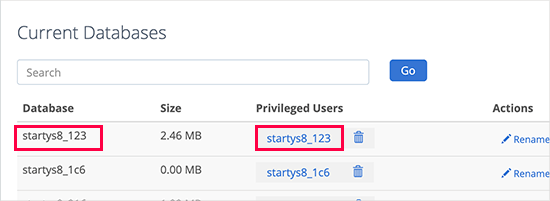
Initially, inspect that the data source credentials are correct. That is most likely the reason for the error message when establishing a data source link. This is specifically essential if you are changing to a brand-new holding carrier: the login information for a WordPress website is generally saved in the Wp-config. PHP file in the origin directory of the WordPress internet site.

2. Make Sure The Database Is Not Damaged

The WordPress data source is rather intricate, with little screws that can malfunction if they do not work together perfectly. Sometimes something goes wrong, and the data source link stops working.

Initially, most likely to the WordPress control board – YOURSITE.com/ Wp-admin.

How to Fix the Error Establishing a Database Connection in WordPress

If you see the very same mistake message, “Mistake creating a data source link,” skip this action.

Next, if you see something different, notice what WordPress is using – the current versions of WordPress have improved repairing attributes so that you might discover some good ideas here.

Likewise, you may see a message beginning with “Several database tables are unavailable. You may also see a message starting with “One or more database tables are inaccessible. This implies that the data source requires to be ‘fixed.’

It is straightforward to do. First, connect to your website once more using FTP, most likely to the WordPress root directory site, and download a Wp-config file. PHP to your desktop computer.

  • Modify this data in Notepad and add a line at the end (right before “That’s it, don’t include even more”).
  • Now re-upload the file to your website (using FTP) and replace the old version.
  • Most likely to YOURSITE.com/ Wp-admin/main/repair. PhP.

Click among the switches. Once autocorrect is complete, go back to the website and see if any mistakes continue to be made.

Suppose there are no errors, excellent! Nonetheless, you are still required to go back to the ‘Wp-config. PHP documents to their previous state. Erase the brand-new lines you have added and publish the data again.

If the Error lingers, proceed to the next step

If you don’t get any errors, that’s fantastic. Nonetheless, you will still require to restore the “Wp-config. PHP” documents to their previous state. Remove the brand-new line you included and post the data once more.

If you still obtain a mistake message, the next step is.

3. Database Customer Approvals Are Incorrect Business Analyst job description | Totaljobs

Customers are not entitled to have the required authorizations for the database; this can cause an error. Click on the blue link for the database under MySQL Manager Users > Database Gain Access to examine this. Then click on the Accessibility Management icon.

Permissions have to be readied to “All Permissions.”.

4. Repair The Database

Although the file is most likely corrupt, it deserves attempting this first as minor database mistakes are simpler to repair and much less risky. There are several methods to fix a WordPress data source. First, choose PhpMyAdmin in your cPanel, click Go to Data Source, select All Tables, and click Repair work Tables in the drop-down menu.

The 2nd method uses WordPress’s built-in data source fixing setting, which can be made possible by adding the complying with a line to your Wp-config. PHP data.

Add specify(‘ WP_ALLOW_REPAIR’, real).

After that, browse this link.

https://yourdomain.com/wp-admin/maint/repair.php.

Select the ‘Deal with’ option and wait on WordPress to refine it. This might take a while. However, it ought to solve one of the most typical database corruption issues. Then remove the line of code you included in Wp-config. PHP. Anybody can access the data source repair service link, so make sure a harmful visitor does not activate it.

5. How To Execute Caching On Your WordPress Site?

5 Best WordPress Caching Plugins to Speed Up Your Website (2022)

Typical reasons for database connection errors.

Inaccurate data source credentials. The most typical root cause of incorrectly established database links is incorrect WordPress database credentials. This can be a database name, username, or password. Remember that these qualifications vary from the credentials used to access the website.

The WordPress MySQL data source consists of a large quantity of information. If any part of it is removed or corrupted, this can cause mistakes. The data source can be corrupted if hands-on intervention is made to it, yet it can also be corrupted during everyday use. MySQL is mighty, but absolutely nothing is best, and errors can happen.

WordPress core documents are corrupted. Likewise, the core WordPress submits that compose an internet site can be damaged. These files are outside the database, yet the same mistakes can occur.

Troubles with the webserver or holding carrier. This Mistake happens when there is a problem with the host or web server, and WordPress can not query the data source. These issues consist of power failures, data loss, and equipment failings.

Although we have already specified that one of the most typical sources of the Mistake is incorrect qualifications, it can likewise be brought on by one of the complying with factors. For that reason, to solve the Mistake, you will certainly require to fix it.

6. Inspect The Database Host Info

Database Stock Photos, Royalty Free Database Images | Depositphotos

If you have inspected the database qualifications and dealt with the Error yet still obtain a mistake connecting to the database, you need to check the database host info next off.

You can find the data source hostname in Wp-config. PHP under the data source name and qualifications.

Takedown these details, and after that, go back to the DreamHost panel and navigate to Even more > MySQL Data source. The hostname in the Wp-config. PHP data should now be presented on this page. If it is disappointing, you will require to include it.

Click on the “Add New Hostname” button to add a hostname.” Enter the preferred hostname on the following web page and pick the right internet site domain from the drop-down listing.

When you have finished, click “Create this MySQL hostname currently”! It might take a couple of hours for the new hostname to appear in DNS, so stop briefly below. After a while, check that the site is working appropriately. If you are still getting database error messages, continue to the following step.

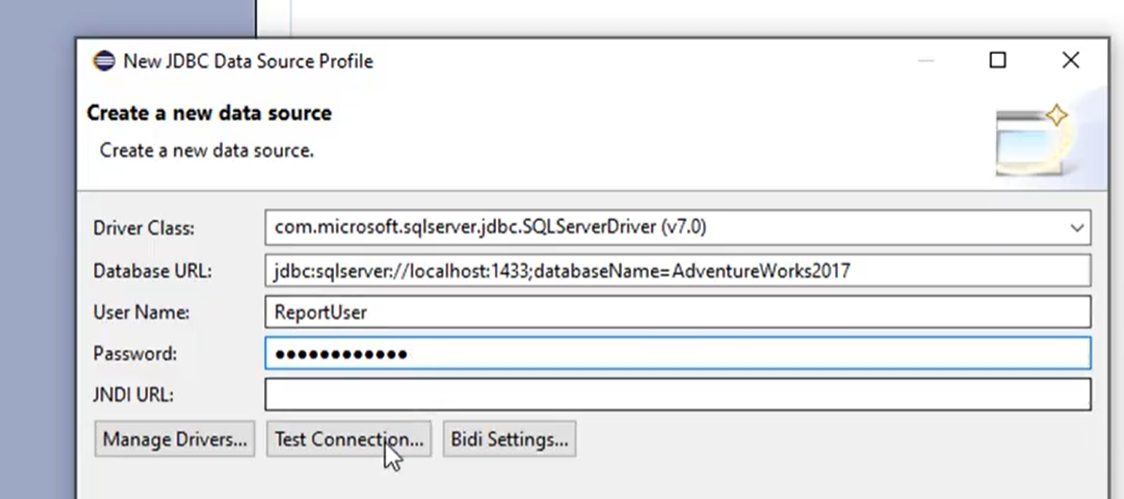
7. Create A Brand-New Database How to connect BIRT to Database — Decode Analytics

  • Level of problem. Scientific.
  • Problem.
  • Modest.

Approximated fixing time:15 -20 mins.

If all of the above techniques fall short, your data source might be corrupted entirely and no longer helpful. In this instance, you will need to develop a new MySQL database and a new user in the organizing control board.

After you create a brand-new MySQL database, restore a backup of your site to ensure that you will not lose any essential data.

  • hPanel

Users of hPanel can go to Data sources and click MySQL Databases. On top of the page, there is a tab for creating a new MySQL data source and also database customer.

cPanel: How to Check a MySQL Database for Errors - YouTube

Enter your database name, username, and password and click the Create button. Bear in mind that the data source password has to consist of eight or more upper and reduced case personalities.

After you do this, the new data source will show up in the Existing MySQL Databases and the Users list. After that, you can manage the database and carry out numerous jobs, such as producing a backup.

  • cPanel

In the cPanel control panel, go to Databases- > MySQL Databases. At the top of the page, you will see the Create New Data Source tab. Get in the name of the brand-new data source and click Create Data source.

The system will, after that, include the brand-new data source to the checklist of existing data sources.

You can also develop a brand-new MySQL user and designate it to the brand-new database in the same home window. Relying on their privileges, individuals can do various tasks, from producing new tables to updating rows.

Enter your brand-new database username and password on the MySQL Customer tab and click Create Customer.

Once you develop a brand-new individual, scroll down to add that Individual to the brand-new database.

Backing Up Your Online WordPress Site - Some Resources - Tom Wade MD

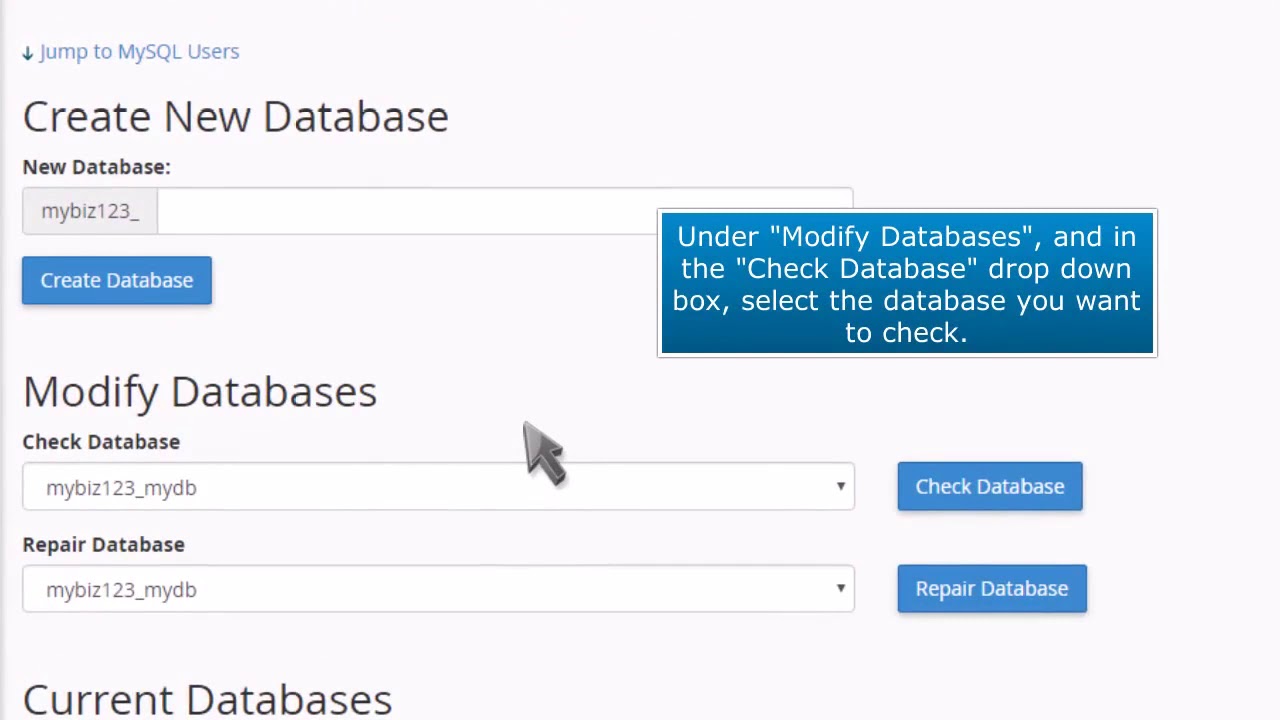
On the Modify Data Source tab, you’ll see two choices for checking or fixing the database. To repair a damaged data source, pick the Repair service Database choice.

Wait for the procedure to complete, and after that, see the WordPress website to see if the “Error connecting to database” message still shows up.

Another alternative is to deal with the database tables in phpMyAdmin. To do this, go to Databases- > phpMyAdmin, click on the name of your database and check all the tables.

  • Click on the adjacent drop-down menu next to the ‘Examine All’ switch. And select Restore Tables.
  • It will be caused to run and repair all the damaged tables. Statement REPAIR_TABLE.

My Web Maintenance

logo

Naturally, this Error is trouble for WordPress website proprietors, but we have described some quick fixes. And if that doesn’t solve your internet site issue or you need experienced aid, we’re constantly below to help.

To contact us, click on this link

  • WordPress Malware Redirect Hack.
  • How to take care of a backdoor in a compromised WordPress website?
  • How to repair the “This account is locked” Mistake in WordPress internet sites.
  • The most effective WordPress security plugins for 2022.
  • Analyzing errors. WordPress phrase structure mistakes are arbitrary.
  • WordPress hacked – How to secure your internet site in 2022 [guide]
  • 26 Best WordPress Plugins: Maximize your website speed.
  • How to eliminate pharma hacking from your WordPress site?

For more help and information please visit My Web Maintenance

Quick tips to fix the error establishing a database connection on your WordPress site Read More »

Web Efficiency Monitoring – Definition, Tips, and Top Web Monitoring Tools

Today, many businesses have a significant digital footprint, and some rely heavily on their web applications to deliver value to their customers and generate revenue. In this competitive digital environment, it’s not enough to make sure your website is available 24/7. It would be best to optimize your websites regularly to provide a better experience. Slow pages or pages that are not optimized for mobile devices can increase bounce rates and impact your search engine rankings. This article will teach you how to monitor your website’s performance and speed up with the best web performance monitoring methods and tools.

WHAT IS WEB PERFORMANCE MONITORING?

Web performance monitoring refers to practices and tools that allow you to monitor your web application based on various metrics and technical parameters that affect page load speed and customer experience. Most web performance analyzers assist you in checking website status or uptime and track critical indicators such as page size, time to the first byte, broken links, database performance, CPU usage, etc. By regularly monitoring your web applications, you can identify lingering, hidden or cyclical issues and better prepare for unexpected spikes.

Web performance monitoring devices can also help you improve your web pages’ “perceived performance,” making them appear to load faster than they are. “Lazy loading” (the gradual loading of images or other elements as the user scrolls down a page, rather than loading the entire page at once), used on modern, image-heavy websites, is an excellent example of optimizing perceived performance. Modern web performance monitors also assist you in tracking user experience or UX-related cues, such as page load spinners, click and hover interactions, animations, scrolling, etc.

HOW FAST SHOULD YOUR WEBSITE LOAD?

When it comes to page load speed, several reports and guides, including this one from Google, recommend optimizing pages for mobile devices as a high priority. According to Backlinko, which gives one of the most up-to-date statistics, the average loading time of a website on mobile is 87% higher than on desktop. It also states that.

The average loading speed (fully loaded) of a web page is 10.3 seconds on desktop and 27.3 seconds on mobile.”

The other essential signs measured by Backlinko are as follows:

  • TTFB (Time to First Byte): 1.2 secs (desktop computer) and also 2.594 seconds (mobile).
  • Rate Index: 4.782 seconds (desktop) and 11.455 seconds (mobile).

It should be noted that the overall size of the page has a significant impact on the loading speed. It would be best to consider compressing images and text to reduce the page size using Gzip.

THE MAIN FACTORS AFFECTING WEB PERFORMANCE

Server performance

The performance of a web server directly affects the performance of your website. Whenever a browser pings your server, it asks the server to load or transmit data to your website. If your server is unhealthy, it will take longer to process these requests. In many cases, your hosting provider is responsible for server maintenance. If your website uses shared hosting and regularly struggles with resource issues, you should consider switching ISPs or choosing a higher plan with more CPU, RAM, and storage space. If you host your website yourself, you can check out this guide to web server monitoring.

Server location

Businesses spread across multiple locations need to ensure that their website performance remains consistent. However, if your site is hosted in one region (e.g., California) but receives traffic from other regions (e.g., Europe), the user experience will differ. In other words, the same page may load faster in the US than in Europe. You can consider implementing a CDN (content delivery network) in such cases. A CDN is a network of added server nodes distributed worldwide to provide faster response times and lower latency. These nodes typically cache static content from your website, including CSS and Javascript files, images, and other components.

Site size

The widespread availability of high-speed broadband and 4G mobile networks has enabled businesses to provide a better experience for their customers with rich multimedia content. Most customer-facing websites today contain high-resolution images.

As a result, the standard physical size of web pages has also risen. However, the increasing weight of pages can take longer to load. All images and components must be optimized or compressed wherever possible to ensure that your web pages load faster. Besides compression, there are other techniques to optimize page size. For example, you can use any streaming service instead of hosting video content on your servers.

Scripting or code-related issues

As websites develop, code density and complexity also increase. Every primary website is built with thousands of CSS, HTML, and JavaScript code lines. Often, multiple scripts are executed in parallel. In such situations, unexpectedly large numbers of web server calls can lead to increased latency. In addition, multiple threads accessing the same shared code or files can lead to “race conditions” that can leave a website vulnerable to security threats.

If the third-party service is down or more heavily loaded, processing your site’s requests will take longer. In many cases, third-party scripts can also affect your site’s performance because calling a remote server to run or load a script takes extra time. By following application development best practices (e.g., minifying JavaScript, CSS, and HTML files, browser caching, etc.) and ensuring that all scripts are appropriately optimized for speed and security, you can avoid such issues.

Faulty CMS plugins

One of the advantages of using content management systems (CMS) is that they offer numerous plugins that keep your development teams from reinventing the wheel. While these plugins save a lot of coding time and effort, they can also introduce performance and integration issues. Plugins developed with older technologies or inefficient database queries can lead to higher load times. In addition, free plugins are rarely updated and may have unpatched security vulnerabilities. Development groups should consider limiting the use of plugins as much as possible.

WHAT MAKES MONITORING WEB PERFORMANCE DIFFICULT?


Complex web architectures

It means that modern application architectures are significantly different from earlier times. Most enterprises are reshaping their traditional LAMP and MEAN stacks to leverage microservices and containers. These applications require analysis of a large amount of data from multiple sources for troubleshooting. Traditional web monitoring tools for availability and performance are not equipped to handle this complexity.

Lack of proactivity

Another major challenge most organizations face is that their teams often become accustomed to traditional processes and tools that provide a reactive method for web performance management. In other words, teams are prepared to respond to a problem but lack the tools and strategy to predict and prevent such problems from occurring.

Lack of intelligent alerting

Alerting fatigue” is no stranger to IT administrators in large enterprises. Most traditional tools require a lot of time and effort to define baselines or understand how their site behaves in different situations. Even when alerts are configured accurately, problems can often go undetected because they fall below certain thresholds.

5 BEST PRACTICES FOR MONITORING WEB PERFORMANCE

  • Monitoring website uptime statistics
  • Monitoring errors
  • Monitoring key transactions
  • Monitoring application dependency
  • Monitoring metrics using the RED method

1. Monitoring website uptime statistics

Best Website Monitoring Services You Should Consider Using

One of the first things you require to check is whether or not your website is online and available to your users. One way to check the website status is to use an HTTP ping monitor that pings your website in specific periods. As long as you get the 200 response code, you can ensure that the website is available. You can also analyze the ping response times to detect any problems or spikes.


2. Error monitoring

67 Error Page Binary Stock Photos, Pictures & Royalty-Free Images - iStock

Whenever your application encounters problems, it generates errors. here are five categories of HTTP error codes (identified by the first digit of the code):

  • 1xx: Informative
  • 2xx: Success
  • 3xx: Redirection
  • 4xx: Client error
  • 5xx: Server error

HTTP error 500, one of the most common errors, indicates that a web server has internal problems that cause errors when processing requests. It doesn’t say much, but if the error code keeps appearing, you should look at troubleshooting.

3. Monitoring key transactions

Specific web requests or transactions can be critical to your business operations. These requests vary depending on the type of web application. For example, an e-commerce application is significantly different from a banking application. Accordingly, the services, APIs, and plugins used for these transactions are also different. You require to identify these critical transactions and monitor them effectively.

You can monitor genuine user transactions with statistics showing the percentage of successful transactions and the time to complete them. If you see a sudden drop in the success rate, you can conclude that there may be a problem. Error logs let you determine the exact nature of the error. You can also monitor transactions synthetically by using servers to simulate real-world conditions. This approach is helpful for proactive planning and problem resolution.

4. Monitor application dependency

Computer Application Vector Art, Icons, and Graphics for Free Download

As organizations introduce more and more new features for their web applications, monitoring their performance in the live environment is essential. Application dependency issues often arise when applications are moved from the production and test environment to the production environment. Modern tools that support “distributed tracing” can help you identify the root cause of such issues in a microservices environment.

5. Monitoring metrics using the RED method

The RED Method: key metrics for microservices architecture

Several tools provide out-of-the-box web performance metrics. In addition, teams add their metrics. In principle, all these metrics must help them overview the entire environment by providing an aggregated view of their environment. However, this technique can also lead to information overload. They need to shortlist some critical metrics to assess the usability and health of the application quickly.

RED Metrics is a widely accepted technique for monitoring the three most crucial web performance metrics:

  • Rate – requests offered by the application per second.
  • Errors – the percentage of requests in which an error occurs
  • Duration – time is taken to complete a request.

You may still require additional metrics from databases, external APIs, and other deeper analysis and troubleshooting sources. Nevertheless, if your application is running well, you don’t need to monitor all of these metrics all the time.

THE 8 BEST TOOLS FOR MONITORING WEB PERFORMANCE

  • GTmetrix
  • WebPageTest
  • SolarWinds Pingdom
  • PageSpeed Insights
  • Uptrends
  • Dotcom Monitoring
  • Site24x7
  • Uptime Robot

1. GTmetrix

GTmetrix is among the most popular commercial devices for monitoring website performance. It provides a wide range of features for detailed testing and analysis of a web application.

You can get a free performance report for your website to quickly assess how GTmetrix can help you measure your web performance. As you can see in the screenshot above, key indicators such as PageSpeed scores (Google), YSlow scores (Yahoo), full load time, and total page size are displayed upfront. These scores are calculated based on more than 25 servers in seven regions worldwide, which can help you better assess the user experience in the target regions.

You can also obtain a detailed and in-depth overview of resource usage and monitor metrics like TTFB, First Paint, RUM (Real User Monitoring) Speed Index, etc., with various charts and visualizations. Another exciting feature is the page loading video, which can help you accurately identify problems from the user’s point of view. The only downside of this tool is that it can be a bit daunting for first-time users, as it is not easy to identify the most critical parameters for monitoring a website’s performance.

2. WebPageTest

If you are searching for a free tool to measure website performance, you can try WebPageTest. Since it is an open-source tool, it is one of the most customizable web monitoring tools. Although it is a free tool, it offers options to select different browsers and server locations to get detailed insights into the user experience.

The tool takes a bit more time to run tests, but it provides you with enough options to identify issues that affect your website’s speed accurately. It also provides waterfall charts that allow you to monitor the time taken for each request in a visual way. A simple rule of thumb for analyzing waterfall charts is to check their width; a more comprehensive chart indicates a slower loading website. Moreover, you can also create custom metrics according to your monitoring needs.

3. SolarWinds Pingdom

SolarWinds® Pingdom® is another powerful tool that provides a much simpler yet practical and faster evaluation of your website. It monitors website uptime statistics, page speed, transactions, and actual users (RUM) with servers in more than 100 locations worldwide. The tool also supports synthetic monitoring. With Pingdom Website Speed Test, you can perform a free website test.

It will give you a quick summary of the test results with recommendations on improving page performance. You also get a tabular summary of response codes, content size by content type/domain, and content type/domain requests. You can also examine file requests by load, order, wait, DNS, status code, and other options.

Pingdom’s main advantages are its intuitive user interface, making it easy for new users to get the most out of the tool. It’s easy to set up email/SMS notifications with Pingdom, and it also integrates seamlessly with notification services like Slack and Pagerduty. You can also install the Pingdom mobile app, which connects to the uptime monitoring service and helps you monitor your site’s uptime on the go. 


4. PageSpeed Insights

PageSpeed Insights from Google can be an effective tool for monitoring your website’s performance. However, teams mostly prefer it focusing on search engine optimization (SEO). When you run a test, you’ll get a concise summary of various parameters with options to drill into the topics that interest you.

You can examine various on-page and back-end elements of your web application and check how they affect loading speed and response times. The tool helps you monitor the quality of various primary components and provides recommendations on how to optimize different elements. The tool is ideal for tech-savvy marketing teams and even helps developers get familiar with Google’s web guidelines and recommendations.

5. Uptrends

Uptrends is a developed player in the web monitoring space. It offers a very intuitive dashboard to track various load times, errors, metrics, and waterfall graphs. You can run tests with multiple browsers from more than 200 sites worldwide.

The tool also lets you test website performance on mobile devices. The bandwidth throttling feature simulates slower mobile networks (2G, 3G, etc.) to test how your website performs under such conditions. However, to monitor transactions and APIs and enable multi-browser testing, you need to sign up for a Business or Enterprise subscription. Accurate user monitoring is also limited until you subscribe to more expensive plans.

6. Dotcom monitor

Dotcom-Monitor offers comprehensive web performance monitoring features, including availability tests, transaction monitoring, performance metrics, alerts, event logs, and mail server monitoring. These features can help you get a detailed insight into each user’s web journey and ensure a better experience with continuous optimizations.

Like other advanced commercial devices, it also offers waterfall graphs and video playbacks to monitor different loading times and browsing patterns. The tool also provides a wide range of integrations to help you get the most out of your existing operational setup. A significant highlight of the product is the historical trend analysis and reporting feature, which permits you to predict future performance results based on key metrics.

7. Site24x7

Site24x7 is another effective website performance monitoring solution that offers famous and advanced features such as website defacement monitoring, SOAP web services, REST APIs, etc. With this service, you can obtain a detailed view of website uptime statistics and the performance of your web applications using test servers spread across more than 90 locations worldwide.

You can also track essential performance metrics with user-friendly dashboards and receive timely alerts to respond to and troubleshoot issues in real-time quickly. While the solution is suitable for end-to-end monitoring, the initial setup can be challenging, and fine-tuning alerts and notifications requires significant effort.

8. Uptime Robot

Uptime Robot is a simple website status checking tool. With the paid version of this device, you can automatically ping your website every minute to check the status of your website. If you receive a 200 response code, your website is available. In case of an error code, the tool performs several checks and finally triggers an alert.

You can get these alerts via SMS, email, or other services like Slack, Telegram, etc. Unlike other devices mentioned in this article, it does not offer recommendations or other advanced options for troubleshooting web performance issues. However, the accessible version of this tool can be a perfect option for smaller organizations that need a simple tool to monitor website uptime.

This article explains that website performance can be affected by various factors, including numerous components such as images, CSS, JavaScript, underlying hardware, and network issues. Modern web monitoring tools can assist you in tracking various metrics and performance indicators to stay on top of your website’s performance. 

Enjoy the post? For more posts, please visit My Web Maintenance

Web Efficiency Monitoring – Definition, Tips, and Top Web Monitoring Tools Read More »

What is Cyber Threat Intelligence? [Beginner’s Guide]

What is Threat Intelligence?

Threat Intelligence is data collected, processed, and analyzed to understand threat actors’ motives, goals, and attack behavior. Threat Intelligence allows us to make faster, more informed, and data-driven security decisions and shift our behavior from reactive to proactive in the fight versus threat actors.

Why is Threat Intelligence Important?

Worldwide Cybersecurity, Advanced Persistent Threats (APTs), and defenders are continuously trying to outmaneuver each other. Data about a threat actor’s next move is critical to adapt your defenses and prevent future attacks proactively.

Organizations increasingly identify the value of Threat Intelligence, and 72 percent plan to increase their spending on Threat Intelligence in the coming quarters.

However, there is a difference between identifying the value and getting it. Today, most organizations focus only on the most basic use cases, such as integrating threat data feeds with existing networks, IPS, firewalls, and SIEMs, without taking full advantage of the insights intelligence can provide.

Organizations that limit themselves to this basic level of Threat Intelligence are missing out on real benefits that could significantly improve their security posture.

Threat Intelligence is essential for the following reasons:

  • Brings light into the darkness and enables security teams to make better decisions
  • empowers Cybersecurity actors by revealing the adversary’s motives and their Tactics, Techniques, and Procedures (TTP)
  • helps security professionals much better understand the threat actor’s decision-making process
  • empowers business stakeholders, such as boards of directors, CISOs, CIOs, and CTOs, to invest wisely, reduce risk, become a lot more efficient, and make faster decisions

Who Benefits from Threat Intelligence?

Threat Intelligence helps organizations of all types and sizes process threat data to understand their attackers better, respond more quickly to incidents and proactively anticipate a threat actor’s next move. SMEs can use this data to achieve a level of protection that would otherwise be unattainable.

On the other hand, organizations with large security teams can reduce the cost and skills required and deploy their analysts more effectively by leveraging external Threat Intelligence.

From start to finish, Threat Intelligence offers unique benefits to every member of a security team, including:

  • Sec/IT Analyst – Optimising prevention and detection capabilities and strengthening defenses.
  • Soc – prioritizing incidents based on risk and impact to the business.
  • CSIRT – Accelerate the investigation, management, and prioritization of incidents.
  • Intel analyst – uncover and track threat actors attacking the enterprise
  • Executive management – understanding the risks facing the business and the options available to address them

Threat Intelligence Lifecycle

The Intelligence Lifecycle is a process for transforming raw data into finished information for decision-making and action. In your research, you will find many slightly different versions of the Intelligence Cycle.

Still, the goal is the same: to lead a Cybersecurity team through developing and executing an effective Threat Intelligence program.

Threat Intelligence is challenging because threats constantly evolve, and organizations need to adapt quickly and act decisively.

The Intelligence Cycle provides a framework that enables teams to optimize their resources and respond effectively to the modern threat landscape. This cycle consists of six steps that culminate in a feedback loop to drive continuous improvement:

Below we will explain the six steps in more detail:

1. Requirements

The requirements phase is critical to the Threat Intelligence lifecycle as it sets the roadmap for a particular Threat Intelligence operation.

In this requirements phase, the team agrees on the objectives and methodology of its intelligence program based on the stakeholders’ requirements. The team can then set out to find out.

  • who the attackers are and what motivates them
  • how extensive the attack surface is
  • what specific measures should be required to strengthen the defense against a future attack

2. Collection

Once the requirements are defined, the team gathers the information needed to meet those objectives. Depending on the objectives, the team will consult traffic logs, publicly available data resources, relevant online forums, SOCial media, and industry or subject matter experts.

3. Processing

Once the raw information has been collected, it needs to be put into a format suitable for analysis. In most cases, this means organizing data points into spreadsheets, decoding files, translating information from outside sources, and checking the data for relevance and reliability.

4. Analysis

Once the data set has been processed, the team must conduct a thorough analysis to answer the questions posed in the requirements phase. During the analysis phase, the team also decodes the data set into recommendations for action for stakeholders.

5. Dissemination

In the dissemination phase, the Threat Intelligence team must translate its analysis into an understandable format and present the results to stakeholders. How the analysis is presented depends upon the target audience.

Most of the time, the recommendations should be presented concisely and without confusing jargon, either in a one-page report or in a short set of slides.

6. Feedback

The last stage of the Threat Intelligence lifecycle is to seek feedback on the submitted report to determine if changes require to be made for future Threat Intelligence operations. 

Stakeholders may change their priorities, the frequency with which they wish to receive intelligence reports, or how the data is disseminated or presented.

Threat Intelligence Use Cases

Below is a list of use cases by function:

Sec/IT Analyst:
  • Integrate TI feeds with other security products
  • Block bad IPS, URLs, domains, files, etc
SOC:
  • Use TI to enrich alerts
  • Link alerts together into incidents
  • Tune newly deployed security controls
CSIRT:
  • Search for information on the who/what/why/when/how of an incident
  • Analyze root cause to determine the scope of the incident
Intel Analyst:
  • Look broader and more profound for intrusion evidence
  • Review reports on threat actors to better detect them
Executive Management:
  • Assess overall threat level for the organization
  • Develop security roadmap

3 Types of Threat Intelligence

The last section discussed how Threat Intelligence could provide us with data about existing or potential threats. This can be simple information, such as a malicious domain name, or complex information, such as a detailed profile of a known threat actor.

Remember that there is a maturity curve for information, represented by the three stages listed below. With each level, the context and analysis of CTI come to be more profound and more sophisticated, targeted at different audiences, and can become more expensive.

  1. Tactical intelligence
  2. Operational intelligence
  3. Strategic intelligence

1. Tactical Threat Intelligence

Tactical Intelligence is focused on the immediate future, is technical, and identifies simple Indicators Of Compromises (IOCs). IOCs are things like malicious IP addresses, URLs, file hashes, and known malicious domain names. They can be machine-readable, which means security products can ingest them via feeds or API integration.

Tactical Intelligence is the easiest to generate and is almost always automated. Therefore, they can be found via open-source and free data feeds but usually have a very short lifespan. IOCs such as malicious IPSs or domain names can become obsolete within days or even hours.

It is essential to note that while simply subscribing to information feeds can result in a wealth of data, it offers little opportunity to analyze the relevant threats. In addition, false positives can occur if the source is not timely or reliable.

2. Operational Threat Intelligence

Just as poker players study the peculiarities of other players to predict their opponent’s next move, Cybersecurity experts study their opponents.

Behind every attack is a “who,” a “why,” and a “how.” The “who” is called attribution, and the “why” is called inspiration or intent. The “how” is composed of the TTPs that the threat actor uses. 

Together, these factors make up the context, providing insight into how the adversary plans, executes and sustains campaigns and significant operations. This insight is Operational Intelligence.

Machines alone cannot create operational Threat Intelligence, and it takes human analysis to transform the data into a format that customers can easily use. 

Operational intelligence needs more resources than Tactical Intelligence. Still, it has a longer lifespan because adversaries cannot change their TTPs as quickly as they can change their tools, such as a particular type of malware.

Operational intelligence is most helpful for those Cybersecurity professionals who work in a SOC (Security Operations Centre) and are responsible for running day-to-day operations.

Cybersecurity disciplines such as vulnerability management, incident response, and threat monitoring are the biggest consumers of Operational Intelligence, as it helps them perform their assigned tasks more competently and effectively.

3. Strategic Threat Intelligence

Attackers do not operate in a vacuum, and there are almost always overriding factors surrounding the conduct of cyberattacks. For example, attacks by nation-states are usually linked to geopolitical conditions, and geopolitical conditions are associated with risk.

Furthermore, with the advent of financially motivated big game hunting, cybercriminals constantly evolve their Techniques and should not be ignored.

Strategic intelligence shows how global events, foreign policies, and other long-term local and international movements can potentially impact an organization’s cyber security.

Strategic intelligence helps decision-makers understand the risks that cyber threats pose to their organizations. They can make Cybersecurity investments that effectively protect their organizations and align with their strategic priorities with this knowledge.

Strategic intelligence tends to be the most difficult to generate. Strategic Intelligence requires people to collect and analyze data, which requires a deep understanding of Cybersecurity and the nuances of the geopolitical situation in the world. Strategic Intelligence usually comes in the form of reports.

Read More: Shared vs Managed WordPress Hosting: The Key Differences

Enjoy the post? For More Posts Visit My Web Maintenance

What is Cyber Threat Intelligence? [Beginner’s Guide] Read More »