My Web Maintenance

host or web server,

Factors Influencing Website Speed & Ensuring Website Security

Security is an essential factor that you need to consider when running a website. Security should be essential in running a small or a large website. As it has become easier to create websites through content management systems (CMS), the use of websites has increased dramatically. However, managing the security of the website is in your hands.

Protecting the website means taking measures to ward off bugs, hackers, and many other online threats. However, this is not the case, as most people need to make the slightest effort to ensure the security of their websites. Therefore, there is a threat that your data could be compromised. As a result, the website might crash or get blocked.

Does the speed of your website affect your interaction with potential online customers? The average Internet user loses interest and leaves a website if it takes longer than two seconds to load. Moreover, most search engines like Google use this speed to determine the SERP ranking of your website. That shows how important it is to optimize the speed of your website.

A faster-loading website keeps visitors engaged and has a better ranking, which means more organic traffic. That, in turn, leads to a better conversion rate and, therefore, an increase in sales.

To learn how to optimize your website, you need to understand the different factors that determine the speed of your website. In this overview, we will mention the most important factors to consider to make your website more reliable.

What are the factors that affect the speed of your website?

1. Your server/hosting
46,700+ Cloud Server Illustrations, Royalty-Free Vector Graphics & Clip Art  - iStock | Server, Cloud computing, Cloud storage

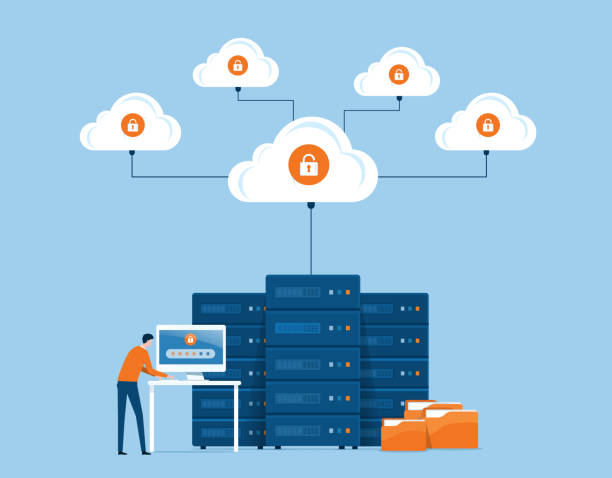
The foundation of your website has a direct impact on the loading speed. For example, if the web hosting company you choose needs more server resources, your website will take longer to load.

It is common for beginners to choose shared hosting for their small websites; this is the cost-effective choice, but there are better choices. The shared hosting platform these websites use can get overloaded, translating into longer loading times. For this reason, large platforms like Facebook prefer private servers or VPS, giving them more control over server resources.

Also, these big websites prefer dedicated hosting, where they are the only website hosted on the server. This way, they have complete control over the server resources.
When choosing the ideal web hosting company, choosing one with an uptime of over 99.5% is crucial. These companies have reliable and fast servers, which results in shorter loading times for your website visitors.

Another option is the Content Delivery Network, CDN. A CDN is an ideal choice for traffic that flows from different locations. The advantage of this network is that it retrieves the website content from the server closest to the visitor accessing the page, which results in a shorter loading time.

It is advisable to determine the server size before choosing the ideal host. The disadvantage of choosing the wrong web hosting company is that your website will remain sluggish despite all the improvements and efforts to increase its systems.
Therefore, when searching for the right provider for your website, inquire about load balancing and private fibers to distinguish suitable providers from those that slow down your website.

There is no ideal web hosting company for all websites; therefore, choose one that meets the requirements of your website. For example, if you have an extensive database on your website, a cloud-based server might be the best option as it offers faster loading speeds.

2. Plugins
50+ Plugin Hybrid Illustrations, Royalty-Free Vector Graphics & Clip Art -  iStock

Plugins are advantageous web features allowing you to add functionality to your website with minimal effort. These features are compelling, and sometimes you can get carried away with overusing them.
If you have fewer plugins, your website may slow down. Each plugin has different functions to perform a specific task. They vary, and you’ll find that the ones that perform more database queries require more resources, which leads to longer loading times. The result is a negative user experience that hurts your marketing campaign.

There are several ways to determine the impact of these plugins on the website load time. For example, if you use Google Chrome, right-click your web page and select the “Inspect” option. With these features, you can see how long your browser loads the required files.
The number of plugins you utilize on your website will determine their speed, and there is no exact number or limit you should follow. However, the trick is to use well-coded plugins that reduce the files you need to load to a minimum.

In addition to various plugins, widgets can also affect the speed of your website. It is tempting to use attractive widgets on your website to make the pages enjoyable. However, control these features because the more you have, the more time your website will take to load the required files.

3. File type and size
535,000+ File Stock Photos, Pictures & Royalty-Free Images - iStock | File  icon, Computer files, Bottleneck concept

That is the most common factor affecting your website’s loading time: the larger the files on your pages are, the more time your website will need to retrieve and present them to your visitors.

4. Page caching

20+ Caching Illustrations, Royalty-Free Vector Graphics & Clip Art - iStock  | Technology caching

It is common to find computer caching plugins to provide a better user experience. In page caching, your computer stores the information about a particular page even after you leave the website. That makes it easier to load the content the next time you visit. Besides, the user saves time by creating a “photocopy” instead of rebuilding the page from scratch.

These caching plugins are essential features to integrate into your website to optimize its speed. Several options are available, such as WP Total Cache, which is compatible with almost all websites. Even though these caching plugins reduce website loading time, you should remember that changes or adjustments will only be visible when visitors clear their cache.

5. Traffic volume
Traffic volume Stock Photos, Royalty Free Traffic volume Images |  Depositphotos

Internet speeds slow down when traffic increases, increasing your website’s time to load. Almost all websites have a set bandwidth, the recommended amount of data that can be transferred in a certain period, usually a month.

A high traffic volume on your website is a good sign, as it guarantees increased engagement and sales. The problem, however, is that your website will take more time to load images, videos, and other files if your web host can’t handle these numbers. That can be incredibly frustrating if you have larger files on your pages.

The effects of increased traffic can have serious consequences, such as shutting down your site entirely until the next period or until you decide to upgrade your plan. That will reduce your momentum, and you will see a decrease in your reach, engagement, and sales.

The dream of all e-commerce businesses is to have high traffic, which indicates that customers engage well with the products. As a marketer, you must keep these numbers high and ensure higher conversion rates. However, please consider your availability and adjust it accordingly to avoid slower website speeds.

6. Internet connection

1,200+ Slow Internet Connection Illustrations, Royalty-Free Vector Graphics  & Clip Art - iStock | Fast internet connection, Bad internet connection

The type of internet connection you use affects the loading time of your website. For example, if you are still using a 3G network or other dial-up connections, your website will take longer to load, no matter how well you optimize it.

There are different internet connections that you should consider when choosing the ideal connection for your website. First, there is DSL, which offers a faster connection than dial-up. However, DSL is slower than a cable connection which is better than a fiber optic cable.
These are some of the internet connections that you should consider. For starters, you can use the DSL and cable connections to satisfy all your website needs, resulting in faster loading speeds.

7. Browser
57,800+ Browser Illustrations, Royalty-Free Vector Graphics & Clip Art -  iStock | Browser window, Computer browser, Browser icon

Another prominent factor affecting your website’s speed is the type of browser used to load the content. Older browser versions need help loading specific codes. If this is the case, you will find that they take a lot of time to load because they are incompatible.
Therefore, it is best to use a browser that allows caching pages. Besides, these new browser versions are updated regularly, and it is best always to use the latest option to have a more personalized and faster experience.

8. Number of redirects
210+ Url Redirection Illustrations, Royalty-Free Vector Graphics & Clip Art  - iStock

Most web designers use redirects to make their websites accessible at multiple URLs. These redirects are necessary to increase traffic to your website, but you need to use them responsibly.

Unnecessary redirects on your website affect its speed as they take longer to load. Therefore, you can use various tools like redirect mapper tools to identify and analyze the existing redirects and remove the unnecessary ones.

9. Malware
710+ Malicious Email Illustrations, Royalty-Free Vector Graphics & Clip Art  - iStock | Phishing, Ransomware protection, Ransomware attack

The malware puts a heavy load on your server. That slows down the website speed and, in extreme cases, causes the website to crash. Therefore, it is advisable to download plugins and themes from trusted sources to prevent malware from entering. Also, malware scanners are available to help you detect these bugs so that you can take action if any are found.

10. Coding standards
7,100+ Women Coding Illustrations, Royalty-Free Vector Graphics & Clip Art  - iStock | Women coding computer, Black women coding

Most new web developers must correct the mistake of writing vast blocks of code meant to execute smaller functions. Unfortunately, such large blocks of code result in slower site speed. That can get worse if these codes do not follow the proper format.
Therefore, bringing in an experienced developer to help you write effective code and choose the best themes is better.

How to ensure the security of your website

1. Install SSL and HTTPS

The SSL (Secure Sockets Layer) certificate encrypts the data transferred between the website and the visitors. Depending on the type of data being processed on the website, different levels of SSL should be used for different websites. A website with an SSL certificate has a padlock in the address bar.
If you are transacting through the website, it is asking for login credentials, or it is used to transfer files, an SSL certificate is essential. That will protect the data from being accessed by third parties during transmission.

How to install SSL:

  • Choose a website builder that offers SSL.
  • Choose a hoster that offers SSL.
  • Install the SSL

Most hosting providers offer free SSL, but you can purchase an advanced SSL if you need a higher level of security.
HTTPS (Hypertext Transfer Protocol Secure) prevents interruptions and interception of content while it is being transferred. It provides security when using the Internet. HTTPS is essential for the website because:

  • Increases the ranking of the website in the search engines
  • helps to gain the trust of customers
  • supports the protection of sensitive data

2. Use anti-malware software

With anti-malware software, your website will stay protected, and you will not have to worry. There are different types of anti-malware software. Some of them are free, and for others, you have to pay. The anti-malware software provides the following services, among others:

  • Malware detection and removal.
  • Web scans.
  • PCI compliance.
  • DDoS protection.
  • Vulnerability patching.
  • Web application firewall.

A good website hosting provider or builder should ensure your website’s highest security. Most providers offer free anti-malware software. When choosing a hosting provider, look for the following features: free SSL, protection against hacker attacks, DDoS protection, SFTP (Secure File Transfer Protocol), regular security upgrades, and automatic backups.

3. Choose a strong password

A strong password is essential for the security of your website. However, most people create one password for all their websites, programs, or databases. That makes your website vulnerable to hackers if any website passwords are exposed. Therefore, change passwords frequently and do not share them with third parties.
Use uppercase, lowercase, memorable characters, and numbers to create a strong password.

Choose sufficiently long passwords (between 12 and 14 digits). Do not use personal information as passwords (date of birth, ID card number, etc.) because this is the information that hackers will try to guess to log in to your website.
If you are a CMS manager or business owner, ensure employees change their passwords regularly. But again, only authorized personnel should have these passwords.

4. Keep the website up to date

You should always ensure that your website’s software is current. Outdated website software is prone to glitches, bugs, and hacking. If you use a hosting provider, updating the software is entirely in their hands.

Ensuring your website plugins are updated regularly will increase the website’s security. When choosing plugins, make sure you choose high-quality ones from trusted developers. Bad plugins may contain malicious code or bugs that can affect your website.

5. Back up the website

Backing up your website is one of the best options to keep your website safe. That will ensure that you can restore your website after a security breach. Never store the backup copies on site. Also, ensure the backup and your website are not on the same server.
There are several methods to back up your website:

  • Using the WordPress plugin: If you use WordPress, you can install your preferred plugin and manage your backup settings.
  • Using backup services: there are several backup services, such as Code Guard, that you pay for and then use to back up your data.
  •  Using a website provider with backup built into their plan – most hosters offer built-in backup software or provide it as an add-on module.

When choosing a reliable backup plan, some of the things you should look for include the following.

  • Automated backups: if you forget to back up, you may pay the price of information loss in case of website corruption. However, you can avoid this by automating the backup process. This way, you can avoid human errors that would have resulted from forgetting to back up your data.
  • Offsite backups: if you back up your data to an offsite location, it will be protected from hackers. Use hard drives to perform these backups. In the event of a hardware failure, the data is safe.
  • Regular backups: you should perform regular backups to ensure you can use an updated backup version of the website.
  • Redundant backup means your web data is stored in multiple locations, not just one.

6. Use a web application firewall

WAF (Web Application Firewall) reads all the data that passes through it, protecting your website. It acts as a gateway for incoming traffic, blocking hacking attempts. WAFs are mostly cloud-based and are plug-and-play services.
WAFs filter unwanted traffic, such as malicious bots and spammers. That helps to increase the security of your website.

7. Tighten network security

If multiple employees are accessing your website, the website must be secure. You should ensure employees do not leave an open path to the website server.
There are several ways to tighten network security. These include:

  • Ensuring that employee passwords are changed every three months.
  •  Allowing the computer login period to expire after a period of inactivity.
  • Ensuring that all devices that access the network are scanned for viruses whenever they are plugged in.

These measures will improve your network’s security and increase your employees’ safety.

8. Record administrative privileges and user access

You can grant administrative rights to employees who access the website server. That may cause them not to use the website as carefully as expected, overlook specific security measures, or make a mistake

That is because they care more about the task they are doing than the security of the website. Unfortunately, this can lead to a significant security breach.
When giving your employees access to the site, you must find out if they understand site security and what to look for to avoid a security breach. You should also find out what experience they have with using CMS.

Educate your CMS users about the need for software updates and passwords. Consistent training on security measures is essential.
It would be best to track who is accessing your CMS and their administrative privileges. Ensure you update this regularly to regulate who has access to the CMS. That will help prevent security breaches.

9. Manually accepting comments on the site

Comments on your site are proof that people have visited your site. Comments ensure that you connect with people, and they can also give you constructive feedback. To ensure that posts on your site get more attention, use Cinema8 to add more actions to your video content.

However, not all comments are good; some contain trolls, bots, fake accounts, or spam links. These can pose a security threat to your website. To prevent this, you need to change the website settings to approve the comments before they appear on the website manually. That will allow you to filter and delete the spam.
You can also reduce these dangerous links by:

  • Ask website visitors to register so that they can post comments.
  • Using plugins and anti-spam software.

The above tactics will ensure your comment section is safe for you and your visitors. The most important thing is high-quality protection against malicious malware and individuals.

10. Change the default settings of your CMS

Most website attacks are automated, and the bots depend on the website’s default settings. You can prevent most of these attacks by changing the default settings immediately after selecting your CMS.

CMS settings include permissions, user visibility, and comment control. You can change file permissions to restrict who and what they can do with a file. Permissions include reading, writing, or executing. Customizing user settings (owner, group, and public) and their permissions can also help reduce attack vulnerability.

11. Know the configuration files of your web server

The configuration files of your web server are located in the web root directory. They allow you to set the server’s rules, including options to improve the site’s security. Different servers use different types of files. You should know which one you are using. These include:

  • web. Config used by Microsoft IIS servers.
  • nginx. conf, which is used by Nginx servers
  • .htaccess file, which is used by Apache web servers.

If you need to know which web server you are using, you can run a website scanner to check the website. It checks for viruses, known malware, website errors, blocklisting status, and more.

12. Do not help hackers

That sounds so obvious. How can you help hackers and protect your website from them simultaneously? Most people unknowingly fall victim to scammers and hackers by giving away crucial personal information.

Research has shown that 92.4% of malware is spread via email. That makes it the most common method of attack. Ensure your website is safe by watching for suspicious emails, calls, or texts asking for personal information.
To ensure that your website is not open to unwanted visitors, you should avoid some simple things:

  • Avoid open or public Internet connections.
  • Do not click on suspicious links in your email; delete them. That is especially important if it is a professional email with a link to your website.
  • Trust only verified professionals to fix your website in case of a malfunction. That is because most hackers pose as technicians to access your website.

Even though this seems so familiar, you should be very careful. First, however, you should remember that almost 95% of cybersecurity breaches are caused by human error.

Conclusion

Research has shown that the number of hacking attacks has increased significantly. That is why security maintenance is so essential. You need to protect your customers’ data as well as your own. Making sure that data falls into the right hands should be a priority.

As we’ve seen, website security is a simple process requiring little capital or technical expertise. Of course, no method can guarantee the maximum security of your website, but incorporating the above methods will increase the security of your website. That, in turn, will reduce your website’s vulnerability to attack.

If you own a website, you should review and apply the above tips to ensure your website is secure. To start building your website, you should choose a good web host or builder and follow the security guidelines mentioned above.

Frequently asked questions

Q1: What steps can I take to ensure the security of my website?

A1: You can take several steps to ensure your website’s security. First, choose a reliable web hosting provider with a good reputation and up-to-date security measures. Watch out for suspicious emails or calls asking for personal information, research the web server’s configuration files, and trust only verified professionals to fix malfunctions. Also, use strong passwords that are changed regularly, use two-factor authentication if possible, disable directory browsing and file listing, and adjust your CMS settings.

Q2: What types of files are used for web server configuration?

A2: Different file types are used for different servers. These include the web. Config for Microsoft IIS servers, nginx. Conf for Nginx servers and .htaccess for Apache web servers. If you need to know which server you are using, you can run a website scanner to check the website and determine what type of file it uses.

Q3: How can I make sure my website is running at optimal speed?

A3: You can take several steps to ensure that your website is running at optimal speed. First, ensure your site has sufficient hosting resources and that the server’s software and security patches are current. Also, utilize a content delivery network (CDN) to reduce latency and bandwidth, optimize your images for faster loading, minify HTML, CSS, and JavaScript files, and use caching to store frequently requested data. Finally, regularly check your website logs for potential issues that could cause slowdowns.

We Fix, Host, & Maintain WordPress Websites

At mywebmaintenance.com we provide instant WordPress technical support. We also provide bespoke web hosting & expert management for thousands of WordPress websites. Use us for quick one-time fixes, or partner with us for ongoing WordPress website maintenance. Follow us on Facebook to find out where we are next.

Factors Influencing Website Speed & Ensuring Website Security Read More »
The Importance of Regular Website Maintenance

Introduction

How are you? As the owner of a website, I know how important it is to have a web presence that shows off your brand and keeps people interested. But it’s not enough to just have a website. To keep it working well and smoothly, it needs to be taken care of regularly. If you don’t keep up with website maintenance, it can lead to security holes, slow performance, and content that is out of date. That’s why I’m excited to tell you why website maintenance is so important and how a local developer can help.

In this blog post, I’ll talk about why website maintenance is important, list some common maintenance tasks, and talk about why it’s a good idea to hire a local developer to help with website maintenance. So, let’s dive in!

The Importance of Regular Website Maintenance for Online Success

How Important it is to keep up a website

A website’s long-term success depends on how well it is kept up. A website is a representation of your brand or business, and it’s often the first time a potential customer meets you. If your website is old, slow, or full of mistakes, it can give visitors a bad impression and cause you to lose potential customers.

The security of your website is one of the most important reasons to keep it up to date. With the number of cyber threats growing, it’s important to make sure your website is safe and has the latest security patches. Hackers can take advantage of security holes in old software, which can lead to data leaks, malware infections, and other problems that can hurt your business and reputation.

Another reason to keep up with your website is to make sure it works well. When a website is slow, visitors can get frustrated and leave, which makes the bounce rate go up and leads to a drop in traffic and sales. Maintaining your website regularly can help improve its performance, which can lead to faster load times, a better user experience, and a higher ranking in search engines.

Why You Should Hire A Local Developer

Why Is Website Maintenance Important? – Breate

Hiring a local developer to keep up with your website can help your business in a number of ways. Here are a few reasons why it’s good to work with a local developer:

Expertise in maintaining websites:

A local developer has experience and knowledge in maintaining websites. They have the skills and knowledge to do regular maintenance tasks like software updates, backups, and security checks. This keeps your website running smoothly and safely.

Customization and personalization:

If you work with a local developer, you can get solutions that are made to fit the needs of your business. They can help you find places where your website could be better and put in place personalised solutions that will improve your website’s performance, user experience, and ability to do what it’s supposed to do.

Communication and access:

When you work with a local developer, you can talk directly to the person who is in charge of keeping your website up-to-date. This lets you get updates on a regular basis and quick answers to any questions or worries you may have. Also, a local developer is easy to meet with in person, which makes it easier to talk about complicated issues and give feedback.

Quick response time:

A local developer can fix problems with your website quickly, which cuts down on downtime and reduces the impact on your business. They can also help you out in an emergency and fix important problems quickly, making sure that your website is up and running as soon as possible.

Why your website needs to be updated often

Maintenance is important if you want your website to work well, be secure, and be easy to use. Here are some reasons why you need to keep up with maintenance on your website:

Security patches and updates:

As part of regular maintenance, you should apply security patches and updates to the software and plugins on your website. When software is out of date, it can leave holes that hackers can use to steal sensitive data, install malware, or do other bad things. Keeping your website up-to-date helps keep it safe and stops possible security breaches.

Performance optimization:

Taking care of your website means optimizing its performance so that it loads quickly and gives users a good experience. This includes things like caching, optimizing the database, and making images as small as possible. If your website is slow, visitors may get frustrated and leave, which can hurt your search engine rankings and online visibility.

Content management:

Part of regular maintenance is making sure that your website’s content is correct, up-to-date, and relevant. This can mean making new pages, updating information about products, or putting up blog posts. Fresh, interesting content can bring people to your website, keep them there, and help it rank higher in search engines.

Website Maintenance: What Are the Advantages and Costs?

Improvements to the user experience:

Regular maintenance also includes improvements to the user experience, such as fixing broken links, making the site easier to navigate, and making sure it works well on mobile devices. A website that is easy to use can get people more interested and keep them on your site longer, which can lead to more sales and more money.

Updates to security:

Security updates are an important part of maintaining a website. They are very important if you want to keep your website safe from cyber-attacks and data leaks. Developers of software often put out security updates to fix known bugs and close security holes in their programs.

If you don’t apply these updates as soon as they come out, your website could be vulnerable to hacking attempts, malware infections, and data theft.

When a security hole is found, it can get a lot of attention, which hackers can use to attack vulnerable websites. Because of this, it’s important to get security updates as soon as possible so that your website doesn’t become a target.

Cybercriminals can sometimes use automated tools to look for websites that haven’t updated their security. This makes it easier for them to target vulnerable sites.

Also, software and plugins that are too old can cause problems with compatibility and make a website stop working or give errors. These problems can cause downtime and hurt the usability, user experience, and search engine rankings of your website. By installing security updates, you can prevent these compatibility problems and make sure that your website works and works well.

To keep your website safe, you need to work with a local developer or a reputable website maintenance service that can do regular security updates and patches. They can make sure that all of your website’s software and plugins are up-to-date, which lowers the risk of security holes and data breaches.

In short, it’s important to install security updates to keep your website safe and running well. If you don’t install these updates, your website could be open to cyber threats, data breaches, and other problems. By investing in regular website maintenance that includes security updates, you can reduce the risk of security holes, protect your business and reputation, and give your visitors a safe and interesting online experience.

Optimization of performance

Performance optimization is an important part of maintaining a website. It includes many tasks that can help your website run faster, be easier to use, and work better overall.

Here are some ways to improve your website’s performance that your local developer can use:

Caching:

Caching is the process of storing website data, like images and HTML files, that are often viewed in temporary storage or memory. This can help speed up the time it takes for your website to load and make it work better.

Database optimization:

If your databases get too big or aren’t set up well, they can slow down the speed of your website. By getting rid of unnecessary data and making the database structure better, optimizing your database can help your website run faster and work better.

Large image files can slow down the time it takes for your website to load. Your local developer can improve the performance of your website by compressing your images without hurting their quality. This will reduce the file size and speed up your website.

Content Delivery Network (CDN):

A CDN is a network of servers that can help get your website’s content to visitors faster. A content delivery network (CDN) can be set up for your website by a local developer. This can cut down on the distance and time it takes for people to access your website’s content, making your website faster and better.

Minimizing HTTP requests:

Getting your website to make fewer HTTP requests can help it load faster. Your local developer can improve the code on your website by getting rid of code that isn’t needed, compressing files, and combining multiple requests into one.

By using these performance optimisation techniques, your website will load faster and be easier to use for your visitors. A faster website can make people more interested, keep them on it longer, and help it rank higher in search engines. Improving the performance of your website can also lower the number of people who leave your site without staying and increase the number of people who stay on your site. This can lead to more sales or leads for your business.

Content management

Content management is an important part of keeping a website running. It means keeping the content on your website up-to-date and making sure it’s still useful, accurate, and interesting for your audience. Here are some ways in which your local developer can help you manage content:

Content creation: Your local developer can help you make high-quality content that is optimised for search engines and tailored to your target audience. They can help you write blog posts, product descriptions, and other website content that is interesting, informative, and relevant to your business.

Content updates:

It’s important to keep your website’s content fresh and up-to-date by changing it often. Your local developer can help you add new content, images, and videos to your website. This will keep your website fresh and interesting for your audience.

Content optimization:

Your local developer can help you make sure that the content on your website is optimized for search engines so that it can be seen by the people you want to see it. This means making sure that your website’s titles, descriptions, and meta tags are as good as they can be so that it show up higher on search engine results pages.

In short, content management is an important part of keeping a website running. By working with a local developer to manage the content on your website, you can make sure it stays up-to-date, accurate, and interesting for your visitors. By updating and optimising your website’s content on a regular basis, you can boost its visibility, search engine rankings, and overall performance, which can help your business do better online.

User experience improvements

User experience (UX) is an important part of maintaining a website. UX refers to how people interact with your website and how they feel as a whole while they’re using it. Here are some ways that your local developer can help improve your website’s user experience:

Responsive design:

Since more and more people are accessing websites on their phones, it is important to have a responsive design to make sure that your website is easy to use and accessible on all devices. Your local developer can help you make a design that works on different screen sizes and devices. This will make sure that everyone who visits your website will find it easy to use.

Navigation is an important part of the user experience. Your local developer can help you make a navigation menu that is clear and easy to use. This will make it easy for people to find the information they want on your website.

Page load speed:

If a page takes too long to load, it can ruin the user experience and make people leave your website. Your local developer can help you optimise the speed at which pages load on your website. This will make sure that your website loads quickly and efficiently.

Accessibility:

It’s important for a good user experience to make sure that your website is accessible to all visitors, including those with disabilities. Your local developer can help you make sure that your website is accessible by adding things like alt tags for images, captions for videos, and keyboard navigation.

By making your website’s user experience better, you can get more people to stay on it, reduce the number of people who leave right away, and improve your website’s overall performance. A good user experience can also lead to more conversions and sales, which can help your business have a more successful online presence.

Typical maintenance jobs

It’s important to do regular maintenance on your website to keep it working, secure, and up-to-date. Here are some common maintenance tasks that your local developer can do to keep your website running smoothly:

Security updates:

Your local developer can make sure that your website’s security software is up to date, which protects your website from potential threats and holes.

Software updates:

Updating your website’s software, like your content management system (CMS) and plugins, on a regular basis can make sure that your website is using the most recent and safest version.

Backups:

It’s important to back up your website’s data on a regular basis so that you have a copy of the content and information in case your website crashes or you lose data.

Broken links and mistakes:

Your local developer can check for and fix any broken links or mistakes on your website on a regular basis, making sure that visitors can use your site without any trouble.

Performance optimization:

Improving your website’s performance, such as the speed at which pages load and the speed at which the whole site runs, can make the user experience better and help your site rank higher in search engine results in pages.

Content updates:

Adding and changing your website’s content on a regular basis can help keep it fresh, relevant, and interesting for visitors.

Analytics and tracking:

Looking at your website’s traffic and how people use it can give you valuable information about how people use your site. This lets you make decisions based on data to improve your website’s performance and user experience.

Your local developer can help keep your website safe, up-to-date, and easy to use by taking care of these common maintenance tasks. Regular maintenance can also help you avoid problems and save you time and money in the long run by letting you fix problems as soon as they show up.

Backups and contingency plans

Website maintenance isn’t complete without backups and plans for dealing with disasters. Having a backup can help you quickly get your website back to the way it was before a crash, data loss, or security breach.

Here are some important things that your local developer can help you with when it comes to backups and disaster recovery:

Regular backups:

Your local developer can help you set up and schedule regular backups of the files, databases, and other important information on your website. By making regular backups, you can make sure you have a complete and up-to-date copy of your website’s data in case something goes wrong.

Offsite backups:

Storing your backups away from your website can help protect its data in case of a natural disaster, like a fire or flood. Your local developer can help you set up and configure offsite backups to make sure the data on your website is safe and secure.

Testing your backups:

Testing your backups regularly can help you make sure they are working correctly and that you can quickly and easily restore your website in case of an emergency. Your local developer can help you test your backups and make any improvements or changes that are needed.

Plan for dealing with disasters:

If you have a plan for dealing with disasters, you can respond quickly and effectively to things like a website crash, data loss, or security breach. Your local developer can help you make a disaster recovery plan that tells you what to do in case of a disaster and what each member of your team is responsible for.

Security concerns: Backups can also be attacked by ransomware or other security threats. Your local developer can help you set up security measures like encryption, access controls, and malware scanning to keep your backups safe.

By working with a local developer to set up backups and disaster recovery, you can help protect the data on your website and make sure you can get back up and running quickly if something goes wrong. Regular backups and testing, storage off-site, and a well-thought-out disaster recovery plan can help keep your website up and running and lessen the damage from a disaster.

Updates to plug-ins and software

Updating your website’s plugins and software regularly is important for keeping your website safe, fast, and useful.

Here are some important things that your local developer can help you with when it comes to updating plugins and software:

Security updates: Updates usually include security patches that fix flaws or weaknesses that hackers could use to get into your website. Your local developer can help you make sure that the software and plugins on your website are up-to-date with the latest security patches.

Performance improvements: Updates can also improve the speed and responsiveness of your website by making changes to how it works. Your local developer can help your website run better by updating your software and plugins regularly.

Compatibility issues: Older versions of plugins and software may not work with the latest versions of your website’s CMS or other software. Your local developer can help make sure that your website’s plugins and software work with the latest versions of your CMS and other software.

Fixes for bugs: Updates can also include fixes for bugs that fix problems or glitches that could affect how well your website works. Your local developer can help make sure that the software and plugins on your website are up-to-date and have the latest bug fixes.

New features: Updates can also add new features and functions that can improve how users interact with and use your website. You can use these new features and add them to your website with the help of a local developer.

Testing:

Before updating the plugins and software on your website, your local developer can help you test them in a staging environment to make sure they don’t cause any problems with how your website works.

By updating your website’s plugins and software regularly, you can help make sure that it stays safe, works well, and gives users a good experience. Your local developer can help you keep up with the latest updates, patches, and bug fixes. They can also help you test and integrate new features and functions.

Increasing the speed of a site

Site speed optimisation is an important part of website maintenance that can have a big effect on how well your site works and how users feel about using it. Here are some important ways in which your local developer can help you speed up your site:

Image optimisation:

Images are often one of the biggest files on a website, which can make it take a lot longer for your website to load. Your local developer can help you optimise your website’s images by compressing them and reducing their file sizes without sacrificing quality.

Minification of code: When you “minify” the code on your website, you get rid of characters, white space, and comments that aren’t needed. This helps reduce the file size of the code and makes your website load faster. The HTML, CSS, and JavaScript code on your website can be made smaller with the help of a local developer.

Caching:

Caching is the process of storing data that is often used, like images and code, in a user’s browser or on a server to make it faster to load a page. Your local developer can help you set up your website’s caching settings to make it load faster.

Content Delivery Network (CDN):

A CDN is a network of servers that are spread out all over the world and can help shorten the distance between your website’s server and a user’s browser. Your local developer can help you add a CDN to your website so that people all over the world can load it faster.

Server optimization: The speed at which your website loads can also be affected by how well your server works. Your local developer can help you optimize your website’s server settings, like the time it takes for the server to respond, to make it load faster.

Testing: Your local developer can do speed tests before and after making changes to your website to make it load faster. This lets them see how much the speed has improved and if any other areas need to be optimized.

By making your website load faster, you can improve the user experience, lower the number of people who leave right away, and get more people to buy from you. To make your website load faster and work better, your local developer can help you with image optimization, code minification, caching, CDN integration, server optimization, and testing.

Broken link and error checks

Broken links and other mistakes can make it hard for people to use your website and hurt its search engine ranking. Checking for broken links and errors on your website on a regular basis is an important part of maintenance that your local developer can help you with.

Here are a few important things to know about broken link and error checks:

Broken links:

Links on your website that no longer work because the page they lead to has been taken down or because the URL has changed. Broken links can make the user experience bad and make visitors angry. Your local developer can help you figure out which links on your website are broken and fix them.

404 errors:

A user gets a 404 error when they try to go to a page on your website that doesn’t exist anymore. This can happen when a link is broken or when a page is moved or renamed without the right redirects. You can find and fix 404 errors on your website with the help of a local developer.

Form validation:

Forms on your website, like contact forms or registration forms, may have mistakes that make it impossible for users to send them. Your local developer can help you set up form validation so that users can fill out and send forms without getting errors.

Site-wide error checks: Your local developer can do regular site-wide error checks to find and fix any other errors or problems that might be affecting how your website works or how users feel about it.

By regularly checking your website for broken links and other mistakes, you can make it easier for people to use and boost its search engine ranking. Your local developer can help you find and fix broken links, 404 errors, form validation problems, and other mistakes that could be slowing down your website.

Mobile responsiveness testing

In the mobile-first world of today, it’s important for websites to be mobile-friendly. Mobile responsiveness testing is an important part of website maintenance that can be done with the help of a local developer. Here are some important parts of testing for mobile responsiveness:

Compatibility with devices: There are a lot of different mobile devices with different screen sizes, resolutions, and operating systems. Your local developer can help you test how well your website works on different mobile devices to make sure it looks good on all of them.

Design that works well on mobile devices: The layout of your website should change automatically to fit different screen sizes and orientations. Your local developer can help you implement responsive design principles to ensure that your website is mobile-friendly.

Navigation and user experience:

When it comes to a website’s navigation and user experience, mobile users have different needs. Your local developer can help you test and improve your website’s navigation and user experience for mobile users, such as where buttons, fonts, and images are placed and how big they are.

Page speed:

Mobile users expect pages to load quickly, and pages that take too long to load can cause a lot of people to leave. Your local developer can help you test and improve the page speed of your website for mobile users, such as by compressing images and reducing the amount of code.

Google’s mobile-first indexing means that it mostly looks at the mobile version of a website’s content when it comes to indexing and ranking it. Your local developer can help you make sure that your website is optimised for mobile-first indexing, such as by using structured data and optimising for voice search.

Why hiring a local developer for website maintenance can be a good idea

There are many reasons to hire a local developer for website maintenance. Here are some key advantages:

Service that is tailored to your needs:

A local developer can give you service that is tailored to your needs. They can work with you closely to learn about your business and website goals and come up with solutions that fit your needs.

Quick response times:

If you need help or support with your website, a local developer can help you right away. They can fix any problems quickly and keep your site from going down as much as possible, so it’s always up and running.

Cost-effective:

Hiring a local developer to maintain a website can be cheaper than hiring a full-time employee or sending the work to a big agency. You can get the help you need for less money, and you only have to pay for the services you use.

Local knowledge:

A local developer knows a lot about the local market and can give you advice and tips that are right for your area. They can also help you improve the visibility of your website in local search results by giving you local SEO services.

Long-term relationship:

A local developer can work with you for a long time and help you with your website in the long run. They can help you come up with a full maintenance plan and keep your website running at its best with regular updates and optimisations.

Overall, hiring a local developer to maintain a website can give you personalised service, quick responses, low costs, local knowledge, and a long-term relationship. You can make sure your website is well-kept and set up for success by working closely with a local developer.

Knowledge of how to keep a website running

To keep your website up-to-date, secure, and running at its best, you need to know a lot about how to maintain it. Here are some of the most important areas of website maintenance that your local developer can help you with:

Technical knowledge: A local developer knows a lot about HTML, CSS, JavaScript, PHP, and other website technologies. They can fix technical problems, improve how well your website works, and make sure it meets current web standards.

Security: Your website and its visitors need to be safe from cyber threats, so website security is very important. To protect your website from attacks, your local developer can set up security measures like SSL certificates, firewalls, and malware scanning.

Managing your website’s content is important if you want to keep people interested and move up in the search engine rankings. Your local developer can help you update your content, add new pages, and make sure your content is SEO-friendly.

Search engine optimisation, or SEO, is very important if you want your website to show up higher on search engine results pages. Your local developer can help you with SEO by adjusting your website’s structure, content, and metadata to make it more visible to search engines.

Backup and disaster recovery: If you want to protect your website in case of an outage or data loss, you need to back it up often and have a plan for what to do in case of a disaster. Your local developer can set up backup and disaster recovery plans for your website to make sure it is always safe.

By hiring a local developer who knows how to maintain websites, you can make sure that your site is always up-to-date, safe, and running at its best. They can help with technical issues, security, content management, search engine optimisation, backup and disaster recovery, and more. With their help, you can keep up a website that keeps people interested, helps your search engine ranking, and helps you reach your business goals.

Customizing and making something unique

Customization and personalization are important parts of website maintenance that can help users have a better experience and become more involved. Here are some ways your local developer can help you customise and personalise:

Customized design: Your local web developer can make a website that is unique to your brand and business goals. They can make a design that is different from anything else on the market and gets the attention of your target audience.

Personalized user experience: Your local developer can change how people use your website by looking at how they use it and what they like. They can give each user recommendations, promotions, and content that appeals to them, which makes users more interested and increases the number of sales.

Customized features: Customized features on your website can make the user experience better and give your website unique features that make it stand out. Your local developer can make custom features for your business, like interactive maps, online booking systems, and social media integrations.

Personalized content: Your local web developer can make the content of your website more relevant to your target audience by making it more personal. They can give personalised suggestions, blog posts, and videos that meet the needs and interests of individual users.

Customized analytics: Your local developer can provide customised analytics that help you to better understand user behaviour on your website. They can look at data to find places to improve and give personalized suggestions to make the user experience and engagement better.

Overall, customization and personalization are important parts of website maintenance that can help improve user experience and engagement. By working with a local developer, you can make a website that fits your brand, has unique features, and keeps your target audience interested.

Talking and being able to reach

Effective communication and accessibility are important parts of website maintenance that can help improve the user experience and make sure that your website meets the needs of all visitors. Here are some ways your local developer can help with communication and access:

Accessibility:

Your local developer can make sure that everyone, even those with disabilities, can use your website. They can add things like alt tags for images, keyboard navigation, and audio descriptions for videos so that everyone can use your website and navigate it.

Responsive design: If your website has a responsive design, it will work on all devices, like phones, tablets, and desktop computers. Your local developer can make sure that your website is optimised for all screen sizes, so that visitors can use it on any device.

Tools for communication:

Your local developer can give you communication tools like live chat, email forms, and social media integrations to make it easier for you and your website visitors to talk to each other. These tools can get your users more involved and help you get closer to your customers.

Support for multiple languages: If your business serves people from all over the world, offering support for multiple languages can help improve the user experience and get more people involved. Your local developer can offer multilingual support, such as translation services, to make sure that people from all over the world can use your website.

User testing:

Doing user testing can help you find ways to make your website more accessible and easier to understand. Your local developer can do user testing and give you personalised suggestions on how to improve your website’s user experience and communication.

Overall, good communication and accessibility are important for website maintenance because they make sure that everyone can use your site and interact with it. Your local developer can add accessibility features, responsive design, communication tools, support for multiple languages, and user testing to improve the user experience and make sure that your website meets the needs of all visitors.

Quick response time

Quick response time is an essential factor in website maintenance that can help to improve user experience and prevent potential problems from turning into major issues. Here’s how your local developer can help with quick response time:

Timely updates:

Your local developer can make sure that your website is regularly updated with the latest security patches, bug fixes, and feature enhancements. Updating your website at the right time can help you avoid problems and make sure it works well.

Regular maintenance:

Plugin updates, performance optimisation, and content management are all examples of regular maintenance that can help make sure your website runs smoothly and efficiently. Your local developer can do regular maintenance on your website to stop problems from happening and keep it up-to-date.

Monitoring and alerts: Your local developer can monitor and send you alerts to find problems before they get too big. They can set up automated tools to keep track of how well a website works and send alerts when there are problems that need to be fixed.

Support 24 hours a day, 7 days a week: Your local developer can help you with any problems at any time of day or night. This can help keep your website from going down and make sure that visitors can always get to it.

Proactive approach: Your local developer can take a proactive approach to website maintenance, making sure that any potential problems are fixed before they become big ones. This can help keep your website from going down and make sure it is always working at its best.

Overall, quick response time is an important part of website maintenance because it makes sure that any problems are dealt with quickly and effectively. Your local developer can make sure that your website is always running smoothly and efficiently by giving you timely updates, regular maintenance, monitoring and alerts, support 24 hours a day, 7 days a week, and a proactive approach.

Things to think about when picking a local developer

It’s important to find the right local developer for your website maintenance needs if you want to make sure your site works well. When choosing a local developer, here are some things to think about:

Expertise and experience: Look for a developer who has the knowledge and experience to maintain your website. Check their portfolio and reviews to make sure they have a history of maintaining websites well.

Communication and accessibility: Make sure that your local developer has good communication skills and is easy to reach. Look for a developer who is available to answer your questions and worries and who keeps you up-to-date on the maintenance of your website.

Services: Think about the specific services your local developer offers and make sure they meet your needs for website maintenance. Look for a developer who can do a variety of things, such as security updates, improving performance, managing content, and making the user experience better.

Cost and pricing model: Think about how much it will cost to maintain your website and how your local developer charges. Look for a developer whose prices are clear and who offers flexible pricing plans that fit your budget and the way you want to maintain your website.

Support and backup: Make sure your local developer offers support and backup services 24 hours a day, 7 days a week. This will make sure that your website is always online. Look for a developer who offers regular backups and disaster recovery services to make sure that your website’s data is safe and secure.

Reputation and references: Find out how well-known your local developer is and ask some of their past clients for references. This can help you figure out how knowledgeable they are, how long they’ve been in business, and how happy their customers are.

Overall, when choosing a local developer for website maintenance, you should look at their expertise and experience, ability to communicate and be reached, services offered, cost and pricing model, support and backup, reputation, and references. By choosing the right local developer, you can make sure that your website works well and gives your visitors a great experience.

Reputation and past work

When choosing a local developer for website maintenance, you should think about their reputation and how much experience they have. This is why:

Reputation:

A local developer’s reputation is based on how well they do their job and how happy their customers are. Look for a developer who has a good reputation for maintaining websites in a good way. Check reviews and testimonials from the developer’s past clients to find out how happy they were with their services. You can also ask other business owners or coworkers who have used website maintenance services for recommendations.

Experience:

When it comes to maintaining a website, experience is very important. An experienced local developer has the knowledge and skills to handle a wide range of website maintenance issues, such as security updates, performance optimisation, and content management. They can quickly find problems and fix them, making sure that your website works well and smoothly. An experienced developer can also give you useful tips and suggestions on how to improve the way your website works and how users interact with it.

It’s important to look at a local developer’s portfolio and track record when thinking about their reputation and experience. Check out their past work to see if they have maintained websites like yours before. If they have worked with other businesses in your niche, they may know more about the challenges and opportunities there.

If you choose a local developer with a good name and a lot of experience, you can feel confident that your website is in good hands. You can count on them to provide high-quality website maintenance services, make sure your website is up-to-date and working well, and give you helpful advice on how to improve your website’s performance and how users interact with it.

Skill set and knowledge of technology

When choosing a local developer for website maintenance, it’s important to think about their skillset and knowledge of technology. This is why:

Skillset: Maintaining a website takes a wide range of skills, such as knowledge of security, performance optimisation, content management, and user experience. When looking for a local developer, it’s important to make sure they have the skills to take care of all the different parts of website maintenance well. Look for a developer who has a lot of experience and skills in different areas of website maintenance. They should be able to quickly spot problems and come up with good solutions to make sure your website runs smoothly and efficiently.

Technology knowledge: The technology landscape is always changing, so it’s important to have a local developer who stays on top of the latest trends and technologies. They should know a lot about the tools used to build websites, like HTML, CSS, JavaScript, and PHP. They should also have worked with Content Management Systems (CMS) like WordPress, Joomla, Drupal, and Shopify. Also, they should know how to host websites and manage databases so that your website runs smoothly and without any problems.

When choosing a local developer, think about what skills they have and what they know about technology. Ask them what they know about different kinds of technology and how they keep up with the latest trends and developments. Check their portfolio and reviews to see if they have worked with similar technologies and platforms before. You can also ask for references to find out more about how good they are at maintaining websites and how long they have been doing it.

Having a local developer with a wide range of skills and knowledge of the latest technology can help your website stay competitive and work well. They can find problems and fix them quickly. They can also make sure that your website uses the latest technologies and give you useful tips on how to improve its performance and the user experience.

Pricing and packages

When choosing a local developer for website maintenance, it’s important to think about pricing and packages. This is why:

Pricing: The cost of website maintenance services can vary a lot depending on the developer’s experience, skill set, and the size of the job. Some developers charge by the hour, while others offer packages for a set price. It’s important to understand how the developer sets their prices and what services come with their package.

It’s important to find a balance between price and quality when setting prices. Even though it may be tempting to choose the cheapest option, a low-priced developer may not have the skills or experience to provide high-quality website maintenance services. On the other hand, if you only need basic maintenance services, a pricey developer may not be the best choice.

Packages: Depending on the level of service they offer, local developers may offer different maintenance packages. Some developers offer basic packages that include things like security updates, backups, and plugin updates, which are all important parts of keeping a website running. Other developers offer full packages with extra services like performance optimisation, content management, and improvements to the user experience.

When looking at packages, it’s important to pick one that fits your needs and your budget. Look for a developer who offers packages that can be changed to fit the needs of your website. A developer who offers different packages is also a good choice, since you can pick the one that fits your needs and budget.

When choosing a local developer for website maintenance, it’s important to think about how much they charge and what packages they offer. Look for a developer with clear pricing, packages you can change, and a good balance between price and quality. With the right price and package, you can get high-quality website maintenance services that keep your site up-to-date, secure, and running well.

Wrapping Up

In conclusion, regular website maintenance is important if you want your site to be up-to-date, safe, and work well. Common maintenance tasks include security updates, performance optimization, content management, user experience improvements, broken link and error checks, mobile responsiveness testing, backups, and disaster recovery.

We Fix, Host, & Maintain WordPress Websites

At mywebmaintenance.com we provide instant WordPress technical support. We also provide bespoke web hosting & expert management for thousands of WordPress websites. Use us for quick one-time fixes, or partner with us for ongoing WordPress website maintenance. Follow us on Facebook to find out where we are next.

The Importance of Regular Website Maintenance Read More »

Protecting Your WordPress Site from Spam

Spam is a common problem that affects all websites, not just WordPress sites.

However, WordPress sites are particularly vulnerable to spam attacks due to their popularity and the ease with which they can be targeted.

How spam affects WordPress sites

Spam can have a range of negative effects on your WordPress site, including:

1. Reduced User Experience:

A site that is inundated with spam comments or emails is not a pleasant experience for users. It can make it difficult for them to navigate your site and find the information they need.

2. Decreased Credibility:

If your site is filled with spam comments or emails, it can reduce its credibility in the eyes of visitors. They may question the security and legitimacy of your site and be less likely to engage with it.

3. Poor SEO Performance:

Spam can also negatively impact your site’s search engine optimization (SEO) performance. Search engines like Google penalize sites that have a high volume of spam, which can lead to lower search rankings and reduced traffic.

4. Increased Security Risks:

Spam can also pose security risks to your site. Spam comments or emails may contain links to malicious websites or contain malware that can infect your site or users’ devices.
To prevent these negative effects, it’s important to take steps to reduce spam on your WordPress site.

This includes implementing user-friendly contact forms that are designed to reduce spam.

In addition, it’s important to regularly monitor your site for spam and take action to remove it. This can involve using plugins that help you identify and remove spam comments or emails, or manually reviewing and deleting them yourself.

Understanding Spam in WordPress

How to Stop WordPress Spam: The Ultimate Guide

The different types of spam

Spam is one of the biggest issues faced by websites today. While spam can be a nuisance for many reasons, it can also pose a significant security risk to your website, making it crucial to understand the different types of spam and how to protect your WordPress site from them.

The first type of spam is comment spam. This type of spam is usually generated by bots that leave comments on your website with links to their websites.

Comment spam can be harmful as it can quickly fill up your website with irrelevant and low-quality content, making it difficult for users to engage with your website.

  • To prevent comment spam, you can use tools like Akismet or CAPTCHA to filter out spam comments.
  • The second type of spam is trackback spam.
  • Trackback spam is similar to comment spam, but instead of leaving comments, spammers leave trackbacks or pingbacks on your website.
  • These trackbacks can contain malicious links that can lead to phishing sites or malware.
  • To prevent trackback spam, you can disable trackbacks or use plugins like GASP or WP-SpamShield.
  • The third type of spam is email spam. Email spam is sent to your website’s email address and can be harmful as it can contain phishing links, malware, or viruses.
  • To prevent email spam, you can use email filters or plugins like WP-Email Guard or Postmark to protect your website’s email address.
  • The fourth type of spam is registration spam. Registration spam is when spammers create fake user accounts on your website to gain access to your website’s content or to send spam messages.
  • To prevent registration spam, you can use plugins like WPBruiser or Stop Spammers to block fake user accounts.

Common spamming techniques

7 most common types of email spam and how to identify - Gatefy

Common spamming techniques are becoming more sophisticated and more difficult to detect. The use of spamming techniques is a major concern for website owners, particularly those who use contact forms to communicate with their users.

Spamming can result in the website becoming blacklisted by search engines, which can damage the website’s reputation and lead to a decline in traffic.

In this blog, we will look at some of the most common spamming techniques and how to protect your WordPress site from them.

1. Bots and Automated Spamming

One of the most common spamming techniques is the use of bots or automated scripts. These scripts can be programmed to fill out the contact form automatically and submit it repeatedly. This can result in a large number of spam messages being sent to your website.
To protect your WordPress site from bots and automated spamming, you can use a CAPTCHA system. A CAPTCHA is a challenge-response test that is designed to determine whether the user is a human or a bot. There are several plugins available that can add a CAPTCHA to your contact form.

2. Content Spamming

Content spamming is another common technique used by spammers. This involves sending spam messages that contain links to other websites.

These links are often irrelevant to the content of the message and can lead to low-quality or malicious websites.
To protect your WordPress site from content spamming, you should use a spam filter. A spam filter can analyze incoming messages and identify those that are likely to be spam. There are several spam filter plugins available for WordPress that can help you to reduce the amount of spam that you receive.

3. Email Harvesting

Email harvesting is the process of collecting email addresses from websites and using them to send spam messages. Spammers use automated scripts to scan websites for email addresses and add them to their spam lists.
To protect your WordPress site from email harvesting, you can use a contact form plugin that does not display email addresses on the website. This can help to prevent spammers from collecting email addresses from your website.

How Spam Affects SEO

What is Negative SEO? [+ 5 Dangerous Types to Know]

Spam is an ever-present threat to any website, including those built on the WordPress platform. While there are numerous ways that spam can harm a website, one of the most significant impacts is on SEO.
Search engines use complex algorithms to determine the relevance and value of a website’s content, and spam can negatively affect these algorithms in several ways.

Here are some of the key ways that spam can impact SEO:

1. Decreased Search Engine Rankings

Search engines want to provide their users with the best possible experience, which means showing them high-quality, relevant content. If a website is filled with spam, it is less likely to be seen as a valuable resource by search engines. This can result in lower rankings and decreased visibility in search results.

2. Penalties and Blacklisting

If a website is found to be engaging in spammy practices, search engines may impose penalties or even blacklist the site entirely. This can be devastating for a website’s SEO, as it can take a long time to recover from these types of penalties.

3. Negative User Experience

Spam can also impact the user experience on a website, which can indirectly affect SEO. If users are bombarded with spammy content, they are less likely to stay on the site and engage with the content. This can result in higher bounce rates and lower engagement metrics, which can negatively impact SEO.

4. Link Spam

Link spam is a particular type of spam that is designed to manipulate search engine rankings by creating low-quality, irrelevant links to a website. This can result in penalties or even blacklisting, as search engines are becoming increasingly sophisticated at identifying and penalizing these types of practices.

The consequences of spam

Electronic spamming Stock Photos, Royalty Free Electronic spamming Images |  Depositphotos

The consequences of spam can be far-reaching and damaging to your WordPress site. Not only does it negatively impact the user experience, but it can also harm your site’s reputation, and search engine rankings, and even lead to legal issues.

One of the most significant consequences of spam is the negative impact it has on your site’s user experience. Visitors to your site may become frustrated and annoyed if they are constantly bombarded with irrelevant or unwanted messages. This can lead to a decrease in engagement and ultimately hurt your site’s overall performance.

Impacting user experience, spam can also harm your site’s reputation. If your site is known for being a haven for spam, it can quickly become blacklisted by search engines and other online services.

This can have a devastating impact on your site’s traffic, as it will be much harder for people to find your site through searches or other means.

Spam can also lead to legal issues if it violates any laws or regulations. For example, if you are sending unsolicited messages to people who have not permitted you to do so, you could violate anti-spam laws. This can lead to fines, legal fees, and even damage to your site’s reputation.
Finally, spam can hurt your site’s search engine rankings. If search engines detect that your site is filled with spammy content or links, it can negatively impact your site’s ranking in search results. This can make it much harder for people to find your site, which can ultimately hurt your business or organization.

Why contact forms are essential in WordPress

Contact forms are an essential feature of any website, particularly for WordPress sites.

  • They provide a way for visitors to get in touch with website owners or administrators and can be used for a variety of purposes, from customer service inquiries to sales leads.
  • However, contact forms can also be a target for spammers, who use automated tools to fill them with irrelevant or malicious content.
  • By providing a simple and intuitive way for visitors to get in touch, website owners can encourage feedback, questions, and suggestions from their users.
  • This can help to improve the quality of their content, products, or services, and build trust and loyalty with their audience.
  • Secondly, contact forms can be used to generate leads and sales. By offering visitors a simple and non-intrusive way to request more information or make a purchase, website owners can convert casual visitors into loyal customers.
  • However, to be effective, contact forms need to be designed with the user in mind. They should be easy to use, visually appealing, and responsive, and should offer clear and concise instructions on how to fill them out.

Finally, contact forms need to be spam-resistant. Spammers use automated tools to fill contact forms with irrelevant or malicious content, which can harm the reputation of the website and compromise the security of its users.

To prevent this, contact forms should include spam filters and validation rules, such as CAPTCHA codes or email verification, which can help to weed out unwanted submissions and protect the integrity of the website.

Key Elements of User-Friendly Contact Forms

When it comes to creating user-friendly contact forms, there are a few key elements that you should keep in mind. By incorporating these elements into your forms, you can create a better user experience for your visitors while also reducing the amount of spam that you receive.

Here are some of the most important elements to consider when creating user-friendly contact forms for your WordPress site:

1. Keep it Simple

The first rule of creating user-friendly contact forms is to keep things simple. This means limiting the number of fields that you include in your form and avoiding unnecessary clutter or distractions.
Remember, the goal of your contact form is to make it as easy as possible for your visitors to get in touch with you. So, keep things simple and streamlined, and only ask for the information that you need.

2. Make it Mobile-Friendly

With more and more people accessing the internet on their mobile devices, it’s important to make sure that your contact form is mobile-friendly. This means designing your form with a responsive layout that adapts to different screen sizes and orientations.
By making your contact form mobile-friendly, you can ensure that your visitors can easily get in touch with you no matter what device they are using.

3. Use Captcha or Other Anti-Spam Measures

One of the biggest challenges with contact forms is dealing with spam. To reduce the amount of spam that you receive, it’s important to use anti-spam measures like Captcha or other spam-blocking tools.
These tools can help to ensure that only legitimate submissions are allowed through your contact form while blocking spam and other unwanted messages.

4. Provide Clear Instructions and Feedback

Finally, it’s important to provide clear instructions and feedback to your visitors when they use your contact form. This means using clear labels and descriptions for each field, and providing feedback when a submission is successful or unsuccessful.

  • By providing clear instructions and feedback, you can help to ensure that your visitors can use your contact form effectively and get in touch with you as easily as possible.
  • By incorporating these key elements into your user-friendly contact forms, you can create a better user experience for your visitors while also reducing the amount of spam that you receive on your WordPress site.

How to optimize contact forms for a better user experience

Contact forms are an essential element of any website, particularly those using WordPress. The forms allow site visitors to reach out to the site owner, ask questions, request support, or make inquiries. However, as much as contact forms are useful, they can also be a significant source of spam.

If not adequately optimized, contact forms can become a nuisance to users, leading to an unpleasant user experience.
Optimizing contact forms for better user experience is, therefore, critical.

By doing so, you can enhance the user experience on your site, making it more user-friendly.

Here are some tips for creating user-friendly contact forms that reduce spam in WordPress.

1. Keep it simple

A contact form should be easy to navigate, with no cluttering or confusing elements. Keep the design simple, with a clear layout that is easy to understand and use. Avoid using too many fields or unnecessary information that may discourage users from filling out the form.

2. Use clear labels and instructions

The labels and instructions used on the contact form should be clear and concise, making it easy for users to understand what is required. The language should be simple and easy to understand, avoiding technical jargon that may confuse users.

3. Use CAPTCHA or reCAPTCHA

CAPTCHA or reCAPTCHA is an effective way of preventing spam on your contact form. CAPTCHA requires users to enter a code or solve a puzzle before submitting the form, while reCAPTCHA uses machine learning to identify human users and block bots.

4. Enable email notifications

Email notifications allow the site owner to receive alerts when a user submits a contact form. This ensures that no message goes unanswered, enhancing user experience and building trust between the site owner and the users.

5. Test the contact form regularly

Regular testing of the contact form ensures that it’s working as intended, with no technical glitches that may affect the user experience. Test the form by filling it out yourself or using a testing tool to identify any areas that need improvement.

Best Practices for Reducing Spam in Contact Forms

7 Proven Tips to Reduce Contact Form Spam in WordPress

Using CAPTCHA and reCAPTCHA

CAPTCHA and reCAPTCHA are two of the most effective ways to prevent spam on your WordPress contact forms.

  • CAPTCHA stands for Completely Automated Public Turing Test to Tell Computers and Humans Apart.
  • This technology uses a challenge-response test to determine whether a user is a human or a computer program trying to spam your website.
  • reCAPTCHA is a more advanced version of CAPTCHA that uses machine learning algorithms to analyze user behavior and detect spam.
  • It is designed to be more user-friendly and easier to use than traditional CAPTCHA.
  • To use CAPTCHA or reCAPTCHA on your WordPress contact forms, you will need to install a plugin that supports these technologies.
  • There are many plugins available in the WordPress repository that offer CAPTCHA and reCAPTCHA support, including Contact Form 7, WPForms, and Gravity Forms.
  • Once you have installed a plugin that supports CAPTCHA or reCAPTCHA, you will need to configure the settings to enable this feature on your contact forms.
  • This typically involves selecting the type of CAPTCHA or reCAPTCHA you want to use and adding the necessary code to your contact form.
  • When a user submits a contact form that includes CAPTCHA or reCAPTCHA, they will be prompted to complete a challenge-response test to prove that they are a human.
  • This could involve typing in a series of letters or numbers, selecting images that match certain criteria, or completing a puzzle.
  • While CAPTCHA and reCAPTCHA are effective at preventing spam, they can also be frustrating for users.
  • To minimize the impact on user experience, consider using a less intrusive form of CAPTCHA, such as a simple math problem or a checkbox that asks users to confirm that they are not a robot.

Requiring Double Opt-In

The Benefits of Double Opt-in vs Single Opt-in - MailMonitor

Double opt-in is a process that requires users to confirm their email address before they can receive any further communication from your website. This is a great way to reduce the number of spam submissions you receive through your contact forms.

When you require double opt-in, you ensure that the email address provided is valid and that the user is interested in receiving your communications.
To enable double opt-in, you will need to use a plugin that offers this functionality.
Once you have enabled double opt-in, when someone fills out your contact form, they will receive an email asking them to confirm their subscription.

They will need to click on a link in the email to confirm their email address, and only then will they be added to your mailing list.

Double opt-in is an extra step in the contact form submission process, and it may cause some users to abandon the form.

However, the benefits of double opt-in far outweigh the potential loss of some leads. By requiring double opt-in, you ensure that your mailing list only includes users who are genuinely interested in your content and who have provided a valid email address.

In addition to reducing the number of spam submissions you receive, double opt-in can also help you comply with anti-spam laws like the CAN-SPAM Act in the USA and the GDPR in the EU.

These laws require you to obtain explicit consent from users before you can send them marketing emails. By requiring double opt-in, you can demonstrate that you have obtained explicit consent from your subscribers.

Limiting Form Submissions

One of the most effective ways to protect your WordPress site from spam is to limit the number of form submissions that can be made. This can be achieved through several methods, including the use of CAPTCHAs, IP blocking, and form submission limits.

CAPTCHAs

Captcha Vector Art, Icons, and Graphics for Free Download

CAPTCHAs are a common security measure used to prevent automated form submissions. They require users to enter a series of letters or numbers that are difficult for bots to read. This ensures that only human users can submit the form.

While CAPTCHAs are effective in reducing spam, they can also be frustrating for users. To minimize this frustration, it is important to choose a CAPTCHA that is user-friendly and easy to read.

IP Blocking

Blocking Vector Art, Icons, and Graphics for Free Download

Another effective way to limit form submissions is to block certain IP addresses. This can be done using plugins or through your hosting provider’s control panel. By blocking known spammers and bots, you can significantly reduce the number of spam submissions you receive.

Form Submission Limits

Finally, you can limit the number of form submissions that can be made in a given period. This can be done using plugins or by setting limits within the form builder itself. By limiting the number of submissions, you can prevent spam bots from overwhelming your site and ensure that your form is only being used by legitimate users.

Designing with CSS

60+ Free Css & Html Images - Pixabay

Designing with CSS: Tips for Creating User-Friendly Contact Forms that Reduce Spam in WordPress
CSS or Cascading Style Sheets is a powerful tool for designing websites and creating visually appealing user interfaces. When it comes to designing contact forms that reduce spam in WordPress, CSS can play a vital role in creating a user-friendly experience for your visitors while making it harder for spammers to exploit your form.
Here are a few tips for designing contact forms with CSS that can help reduce spam in WordPress:

1. Use clear and concise labels:

When designing your contact form, make sure that you use clear and concise labels for each field. This will help users understand what information they need to provide and can also help reduce errors. Additionally, clear labels make it easier to identify if a submission is spam or not.

2. Use proper spacing:

Proper spacing between form fields can make your form look more organized and less cluttered. This can help users navigate the form more easily and reduce the likelihood of errors or confusion. Spammers often use automated tools to fill out forms quickly, so adding extra spacing can make it harder for them to do so.

3. Limit the number of fields:

The more fields on your contact form, the more likely users are to make mistakes or abandon the form altogether. Limiting the number of fields to only what is necessary can help reduce errors and make your form more user-friendly. Additionally, fewer fields make it harder for spammers to exploit your form.

4. Use visual cues:

Visual cues such as icons or color changes can help users understand what is required of them in each field. This helps reduce errors and can also make it harder for spammers to automate their submissions.

5. Use validation:

Validating user input helps ensure that the information submitted is correct and reduces the likelihood of errors or spam. You can use HTML5 validation or JavaScript validation to ensure that the information provided is in the correct format.

Creating a Unique Form Design

Beautiful Forms - Design, Style, & make it work with PHP & Ajax | The  Jotform BlogContact forms are an essential part of any website, allowing users to communicate with the website owner or administrator.

However, contact forms can also be prone to spam attacks, which can be frustrating and time-consuming to manage. To reduce spam and increase user engagement, it is essential to create a unique form design that is user-friendly and secure.
Here are some tips for creating a user-friendly contact form design that reduces spam in WordPress:

1. Keep it simple:

The simpler the form, the more likely users are to complete it. Avoid using too many fields or requiring too much information, which can be a turn-off for users. Keep the form design clean and straightforward, with clear instructions and labels.

2. Use CAPTCHA:

CAPTCHA (Completely Automated Public Turing test to tell Computers and Humans Apart) is a security measure that helps to prevent spam bots from submitting forms. It requires users to enter a code or solve a puzzle to prove they are human. CAPTCHA can be added to WordPress forms using plugins such as Google reCAPTCHA.

3. Use a spam filter:

WordPress plugins like Akismet or WP-SpamShield can help to filter out spam comments and form submissions. These plugins use algorithms to detect and filter out spam, reducing the amount of time you need to spend managing your contact form.

4. Make it mobile-friendly:

More and more users are accessing websites on mobile devices, so it’s essential to ensure that your contact form is mobile-friendly. Keep the design simple and easy to use on a smaller screen, and ensure that the form is easy to submit on a touchscreen device.

5. Test and iterate:

Once you have created your contact form, it’s essential to test it thoroughly to ensure it’s working correctly and is user-friendly. Ask friends or colleagues to test the form and provide feedback on their experience. Use this feedback to iterate and improve the design of your form.

By following these tips, you can create a unique and user-friendly contact form design that reduces spam in WordPress while increasing user engagement.

Remember to keep the design simple, use security measures such as CAPTCHA and spam filters, make it mobile-friendly, and test and iterate to ensure it’s working correctly.

Analyzing and Managing Spam

Google Spam Update Done Rolling Out

Understanding Spam Filters

Spam emails are a nuisance that has been plaguing the internet since its inception. They fill up your inbox, waste your time, and can even be harmful if they contain malware or phishing scams.

  • Spam filters are an important tool in the fight against spam, and they can help keep your WordPress site safe and secure.
  • Spam filters are designed to detect and block spam emails before they reach your inbox.
  • They use a variety of techniques to do this, including analyzing the content of the email, checking the sender’s reputation, and looking for patterns that indicate spam.
  • There are two main types of spam filters: server-side and client-side.
  • Server-side spam filters are installed on the email server and scan all incoming emails before they are delivered to your inbox.
  • These filters are generally more effective than client-side filters, as they can analyze emails in greater detail and have access to a wider range of data.
  • However, they can also be more restrictive, and may occasionally block legitimate emails.
  • What Are Email Spam Filters and Why Do You Need Them?
  • Client-side spam filters are installed on your computer or device, and scan emails as they are downloaded to your inbox.
  • These filters are less effective than server-side filters, as they can only analyze emails that have already been delivered to your inbox. However, they are more flexible and can be customized to suit your specific needs.
  • When it comes to WordPress, spam filters are typically built into contact form plugins.
  • These filters use a variety of techniques to detect and block spam submissions, including CAPTCHAs, honeypots, and content analysis.
  • It’s important to choose a contact form plugin that has strong spam filtering capabilities, as this will help keep your site safe and secure.

In addition to using spam filters, there are several other steps you can take to reduce spam on your WordPress site.

These include using a contact form plugin that requires users to confirm their email address before submitting a form, using strong passwords and two-factor authentication, and regularly updating your WordPress installation and plugins.

Analyzing Spam Data

To effectively protect your WordPress site from spam, it is important to analyze the data that you receive. This will allow you to identify patterns, trends, and potential vulnerabilities in your contact forms.
The first step in analyzing spam data is to gather it.

Once you have collected this data, you can begin to analyze it. One of the key things to look for when analyzing spam data is patterns.

Email Forensics Services in India | Cyforce

Are there certain types of spam that you receive more frequently than others?

Are there particular keywords or phrases that appear frequently in the spam messages?

By identifying these patterns, you can begin to tailor your contact forms to better protect against these types of spam.
Another important aspect of analyzing spam data is looking for trends.

Are there certain times of day or days of the week when you receive more spam?

Are there particular countries or regions that seem to be the source of the spam?

By identifying these trends, you can take steps to block traffic from those regions or adjust your contact form settings to better protect against spam during those times.
It is important to look for potential vulnerabilities in your contact forms.

Are there fields in your contact form that are particularly susceptible to spam?

Are there certain types of spam that are getting through your filters?

By identifying these vulnerabilities, you can adjust your contact form settings or add additional security measures to better protect against spam.

Managing spam comments and messages

Using Hidden Words To Avoid Instagram Spam Comments - Crystal Media

Managing spam comments and messages can be a tedious task, but it is essential to protect your WordPress site from potential security threats.

  • Spam comments and messages are not only annoying, but they can also harm your website’s reputation and compromise its security.
  • The first step to managing spam comments and messages is to install an anti-spam plugin.
  • There are several anti-spam plugins available in the WordPress repository, and you can choose one that suits your needs.
  • Some popular anti-spam plugins include Akismet, Anti-Spam Bee, and WP-SpamShield.
  • These plugins use various methods to identify and block spam comments and messages, such as analyzing the content, IP address, and user behavior.
  • Another way to manage spam comments and messages is to enable comment moderation.
  • By enabling comment moderation, you can review and approve comments before they appear on your site.
  • This way, you can ensure that only genuine comments are published on your site, and spam comments are blocked.
  • You can also use CAPTCHA or reCAPTCHA to prevent automated spam comments and messages.
    You can also use a blacklist to block comments and messages from specific IP addresses, domains, or keywords.
  • This way, you can prevent spam comments and messages from recurring and reduce the workload of managing spam.
  • You can also use a whitelist to allow comments and messages only from trusted sources.

It is essential to monitor your site regularly for spam comments and messages. You can use the WordPress dashboard or a third-party tool to monitor your site’s comments and messages.

If you notice any spam comments or messages, you can take immediate action to block or remove them.

Using Automated Spam Filters

Spam filter Stock Photos, Royalty Free Spam filter Images | Depositphotos

One of the most effective ways to reduce spam on your WordPress site is by using automated spam filters.

  • These filters are designed to identify spammy emails and prevent them from reaching your inbox.
  • They work by analyzing the content of the email and looking for certain patterns and keywords that are commonly used by spammers.
  • Once the filter identifies an email as spam, it is either blocked or sent to a separate folder, so you don’t have to deal with it.

There are several spam filters available for WordPress that you can use to protect your site.

Each of these filters works slightly differently, but they all have the same goal of reducing the amount of spam that you receive.
To use an automated spam filter, you typically need to install a plugin on your WordPress site. Once installed, the plugin will automatically start filtering out spam emails.

You may need to configure the settings of the plugin to ensure that it is working properly and that it is not blocking legitimate emails.
To using automated spam filters, there are other steps that you can take to reduce spam on your WordPress site.

One of the most effective ways is to use user-friendly contact forms that are designed to prevent spam. These forms typically include features such as CAPTCHAs, honeypots, and email verification, which make it difficult for spammers to submit spammy emails.

Another effective strategy is to use a reputable email service provider that has built-in spam filtering. Many email service providers, such as Gmail and Yahoo Mail, use advanced algorithms to identify and block spam emails. By using one of these services, you can significantly reduce the amount of spam that you receive.
Overall, using automated spam filters is an essential step in protecting your WordPress site from spam. By taking advantage of these filters and other anti-spam measures, you can ensure that your inbox remains free of unwanted emails and that your site stays safe and secure.
Advanced Techniques for Protecting Your WordPress Site from Spam

Using IP Blocking

Vpn for iphone Stock Photos, Royalty Free Vpn for iphone Images |  Depositphotos

One of the most effective ways to protect your WordPress site from spam is by using IP blocking. This technique involves blocking specific IP addresses or ranges of addresses that are known to be associated with spam or malicious activity.
To implement IP blocking, you can use a plugin like Wordfence or iThemes Security. These plugins allow you to block IP addresses based on several criteria, including geographic location, known spam sources, and user behavior.
In addition to blocking IPs, you can also use IP blocking to limit access to your site. For example, you can block access to your site from certain countries or regions where you don’t have any legitimate visitors.
When using IP blocking, it’s important to be careful not to block legitimate visitors. One way to do this is by regularly reviewing your access logs to see which IPs are accessing your site.

If you notice any IPs that are repeatedly attempting to access your site but are being blocked, you may want to investigate further to see if they are legitimate visitors.
Another way to avoid blocking legitimate visitors is by using a more targeted approach to IP blocking. For example, you can block specific IPs that have been identified as spam sources, rather than blocking entire ranges of addresses.
IP blocking is a powerful tool for protecting your WordPress site from spam and malicious activity. By using a combination of targeted blocking and regular monitoring, you can keep your site safe and secure for your users.

Implementing a whitelist

Whitelist: O que é? Como configurar no servidor? - i7 Host

A whitelist is a list of approved email addresses or domains that are allowed to send messages through your contact forms. Implementing a whitelist can help reduce spam and ensure that only legitimate messages are delivered to your inbox.

To get started, you’ll need to create a list of email addresses or domains that you want to whitelist. This could include your email address, team members’ email addresses, and any other trusted contacts who might need to send you messages through your contact forms.

Once you have your list of approved email addresses or domains, you can configure your contact form plugin to only accept submissions from those addresses.

The exact steps for doing this will depend on the plugin you’re using, but most contact form plugins will have a whitelist feature that you can enable.

When you enable the whitelist feature, any submissions that come from email addresses or domains that are not on your approved list will be automatically rejected.

This can help reduce the amount of spam you receive and ensure that only legitimate messages are delivered to your inbox.
It’s important to note that implementing a whitelist can also have some drawbacks.

For example, if you accidentally leave an important email address off your list, that person may not be able to submit messages through your contact forms.

Additionally, if a spammer manages to spoof one of your approved email addresses, they may still be able to bypass your whitelist.
To mitigate these risks, it’s important to regularly review your whitelist and ensure that all necessary email addresses and domains are included.

You may also want to consider implementing additional spam filtering measures, such as CAPTCHAs or anti-spam plugins, to further reduce the amount of spam you receive.

Using a VPN – Protect Your WordPress Site’s Privacy

WordPress Security Guide: 20 Steps to Protect Your Site

As a WordPress site owner, it’s essential to protect your site’s privacy from spam and security threats. One way to do this is by using a Virtual Private Network (VPN). A VPN is a network that provides encryption and privacy to your internet connection. It creates a secure tunnel between your device and the VPN server, hiding your IP address and location.

Why Use a VPN for Your WordPress Site?

There are several reasons why you should use a VPN for your WordPress site:

1. Protect Your Site from Hackers

Hackers can steal your login credentials, inject malware into your site, and install backdoors. Using a VPN can help protect your site from these threats by encrypting your traffic and hiding your IP address.

2. Access Your Site Securely

If you frequently access your WordPress site from public Wi-Fi networks, you’re at risk of having your login credentials stolen. A VPN can protect you by encrypting your traffic and hiding your location.

3. Improve Your Site’s SEO

Search engines consider site speed and security when ranking sites. Using a VPN can improve your site’s speed by reducing latency and improving network performance. It can also protect your site from spam and malicious traffic, improving your site’s reputation and search engine rankings.

How to Use a VPN for Your WordPress Site?

Using a VPN for your WordPress site is easy. Here’s how to do it:

1. Choose a VPN Provider

There are many VPN providers available, and choosing the right one can be daunting. Look for a provider that offers strong encryption, a no-logs policy, and fast connection speeds.

2. Install the VPN Software

Once you’ve chosen a VPN provider, install the VPN software on your device. Most VPN providers offer software for Windows, Mac, iOS, and Android.

3. Connect to the VPN Server

After installing the VPN software, connect to the VPN server. Most VPN providers offer servers in multiple locations, so choose a server that’s geographically close to your WordPress site’s server.

Installing SSL certificate

Free SSL VS Paid SSL - Choose the Best SSL for Your Needs | Vodien

If you’re running a website, security should be your top priority. One of the most important steps you can take to secure your WordPress site is to install an SSL certificate.

  • An SSL certificate encrypts data between your website and your visitors, making it much harder for hackers to steal sensitive information.
  • To install an SSL certificate, you’ll need to follow a few steps.
  • The first step is to purchase an SSL certificate from a reputable provider.
  • There are many providers to choose from, including Comodo, DigiCert, and Symantec. Once you’ve purchased your SSL certificate, you’ll need to install it on your server.
  • The process of installing an SSL certificate will vary depending on your web hosting provider. Some hosting providers will install the SSL certificate for you, while others will require you to do it yourself.
  • If you’re unsure how to install an SSL certificate, it’s best to contact your hosting provider for assistance.
  • Once your SSL certificate is installed, you’ll need to configure your WordPress site to use HTTPS.
  • This involves updating your site’s URL to include the HTTPS protocol instead of HTTP.
  • You’ll also need to update any links within your site to use HTTPS instead of HTTP.

Finally, you’ll need to test your SSL certificate to ensure that it’s working properly. There are many online tools available that can help you test your SSL certificates, such as SSL Checker and Qualys SSL Labs.

Wrapping Up

As we come to the end of this comprehensive guide on protecting your WordPress site from spam with user-friendly contact forms, it’s important to recap the key takeaways and insights we’ve covered throughout the book.
By making it easy for genuine users to contact you and providing clear instructions and feedback, you can discourage spammers from inundating your inbox with unwanted messages.
We then delved into the various types of spam that can affect WordPress sites, including comment spam, trackback spam, and contact form spam. We discussed the impact these spam types can have on your site’s security, performance, and user experience, and provided practical tips for preventing and mitigating them.

We Fix, Host, & Maintain WordPress Websites

At mywebmaintenance.com we provide instant WordPress technical support. We also provide bespoke web hosting & expert management for thousands of WordPress websites. Use us for quick one-time fixes, or partner with us for ongoing WordPress website maintenance. Follow us on Facebook to find out where we are next.

Protecting Your WordPress Site from Spam Read More »

WordPress Website Maintenance Checklist: 22+ Must Do Task In 2023

Are you up to date with your WordPress maintenance?

If the answer is no, don’t worry. We’ve created this guide to simplify the WordPress maintenance checklist process with 20 easy-to-follow tasks.

There are three ways to maintain a WordPress website – with a plugin, by hiring a maintenance service, or manually.

We’ve simplified all three ways to ensure you can easily maintain your website without worrying about it.

What is WordPress maintenance?

How to Offer Your Clients an Excellent Website Maintenance Plan or Retainer

WordPress maintenance is a procedure that requires you to complete several tasks that will help you optimize your website, keep it secure, and keep it running like a well-oiled machine. The WordPress maintenance checklist includes tasks like deleting outdated plugins, fixing broken links, updating WordPress, and much more.

A checklist for maintaining a WordPress website

The Complete Website Maintenance Checklist - DreamHost

There are several ways you can maintain a WordPress website. Some require you to be much more hands-on than others, but each has its benefits. We’ve listed these methods in order of effectiveness and convenience so you can choose the best option according to your needs.

A. Use a maintenance plugin

Using a maintenance plugin like WP Remote is the best choice to ensure that your website is functioning correctly without handing over the reins to a stranger. A maintenance plugin allows you to monitor everything from security to backups and updates from a single dashboard.

WP Remote gives you complete control over the maintenance of your WordPress website by simplifying complex tasks in minutes that can take hours to complete manually. With WP Remote, you can manage multiple websites from a single dashboard, saving you time and effort that you can use to grow your business.

What you can expect with WP Remote:

  • Scheduled automatic backups
  • Secure updates via staging sites
  • Thorough on-demand malware scanning
  • Accurate malware detection
  • Flawless cleanups
  • Does not impact server performance
  • Automated scans
  • Real-time alerts
  • Uptime monitoring
  • Retrievable reports
  • Activity log

B. Hire a maintenance service

Maintenance services like Maintain or WP Buffs will take care of WordPress maintenance for you. They maintain your website and make sure thing is running smoothly.

However, not all maintenance services are dependable, and the good ones can be expensive. Moreover, we can’t guarantee the effectiveness of these services, as it varies from provider to provider. We suggest that you only hire maintenance services that you trust.

C. WordPress maintenance checklist: manually maintain your website in 20 easy steps

Website Maintenance Checklist 2022 [Tasks+Cost+Importance]

The third and final option to maintain your WordPress website is manual maintenance. Manual WordPress maintenance tasks can be tiresome, there are many aspects to keep track of, and they can quickly take up a large chunk of your work time if you don’t have a devoted person to take care of your website maintenance, especially for more significant sites.

However, if you want to maintain your WordPress site manually, we’ve put together a WordPress maintenance checklist for you to refer to keep on top of your site’s maintenance.

1. Prioritize the security of your WordPress website

The first and most crucial task in WordPress maintenance is to create a plan for your website security and execute it. The security of your WordPress website should be your top priority. The security of your WordPress website should be your top priority because even the slightest hint of malware can cause you to lose customers, blocklist your website, or even lose data. The consequences are far too significant to risk the security of your website. 

The best way to protect your WordPress website is to use a security plugin like MalCare. With MalCare, you can schedule daily scans of your website and get notified when it detects suspicious activity. Even if malware is detected, you’ll be able to clean it up within minutes, with a single click on MalCare. Doing this will always be in control of your website’s security.

MalCare also provides firewall protection that stops all incoming attacks, such as brute force attacks and XSS attacks, which can harm your website, visitors, and the entire business.

2. Secure your website regularly

If your website is essential to your business by any means, backups are an absolute necessity. But if your website gets hacked and all data is lost, or your web host suspends your account and deletes your website data, backups are the best solution if you don’t want to start from scratch. Often, website owners underestimate the need for backups because they seem unnecessary until they are needed.

With a good backup, you can get your website back and run in minutes, reduce downtime, and minimize losses.

There are several methods to create backups of your WordPress site, such as using a backup plugin, using your web host’s backups, or backing up your site manually. Although all these options are possible, the only reliable option is using a backup plugin like Blogvault.

Backing up your website can be tedious and prone to human error. The web host’s backups are not always reliable; if your web server gets hacked, your backups will also be affected. BlogVault automates this process by creating automatic daily backups for your website and storing them on an external server. This way, even if your website’s server is corrupted, your backups are safe, and the storage does not affect your website’s performance.

3. Optimize the performance of your WordPress website

One of the main reasons why visitors leave a website is because it loads too slowly. Thanks to the many tools and plugins available for WordPress websites, you can optimize your website to improve its performance. These include removing junk data, optimizing images, and more. You can use a website optimization plugin like Jetpack or WP Rocket to improve your website’s performance.

4. Update the WordPress version

Probably the most critical task in WordPress maintenance is updating your WordPress version. WordPress version upgrades are released regularly, about twice a month, and must be installed as soon as possible. They usually include patches, bug fixes, enhanced features, and other improvements. But they also close newly discovered security holes, which makes them an indispensable part of your maintenance routine.

WordPress automatically installs minor updates to your site, but you can disable this feature. Significant updates require your approval, but often management delays updating WordPress versions because significant changes can cause incompatibility issues with existing themes and plugins and potentially break the site.

You can utilize a plugin like BlogVault to create a test site and test any significant updates. You can merge this with your live site to ensure these updates are safe.

5. Update WordPress themes and plugins

Similar to your WordPress core, your website’s themes and plugins need to be updated regularly. Ideally, you must update them as soon as an update is released. Theme and plugin developers often fix discovered vulnerabilities by releasing patches in the form of updates. Therefore, you require to update your website regularly. However, it is not always possible to keep track of updated schedules.

If you use BlogVault, you can monitor the updates from your dashboard and update your themes and plugins instantly and effortlessly. Can also test necessary plugins or theme updates via staging sites.

6. Detect and delete spam

Spam is a real problem, especially for high-traction websites. If you permit comments on your site, you may have noticed that many of them are spam. Some are just random posts promoting something, but there are also those with links that can be harmful and trick your visitors into giving away their information.

Spam comments make it challenging for genuine visitors to get in touch with you, and the potential security risks posed to your website by malware. It would be best if you got rid of all this spam. The easiest method to do that is with an anti-spam plugin like Akismet.

7. Repair broken links

Broken links on your WordPress website may seem small, but if your links are broken, it can hinder Googlebot and other search engines from crawling and indexing your web pages. That means your website will not appear in search engines despite all the SEO measures and content you spend a lot of time on.

To avoid this, you need to check your website for broken links from time to time. You can use a website audit tool to crawl your website and check for any problems. That will give you a list of broken links that you can update.

8. Check downloads and social media links

If you offer downloads on your website or provide links to social media, you need to check if these links are regularly working. Sometimes, the links and downloads are broken due to errors or inefficient code. It can significantly affect the user experience of your visitors and make them doubt the credibility of your business.

Visit your website in an incognito window and ensure all links lead to the correct web page and that all downloads are available without any problems.

9. Check the SEO of your website

The search engine optimization of your website is an essential factor in how your potential customers find your website. Therefore, it is crucial to optimize it for search engines. That is not just about optimizing new content and forgetting about it. You must also review your old content and pay attention to meta descriptions, tags, and titles. Review all your SEO practices quarterly to ensure your process is in line with new Google updates.

10. Check device and browser compatibility

We’ve already discussed why website performance is essential. An ordinary visitor is only willing to wait 3 seconds for your website to load and impress them. However, your website may work great on a desktop browser, not a mobile device. Similarly, websites can perform differently on different browsers.

Therefore, it is essential to regularly test your website’s performance on different devices and browsers to ensure that the user experience on your website is consistent for all visitors. With plugins like LambdaTest, you can quickly check your website’s device and browser compatibility.

11. Check user accounts

The user accounts on your WordPress website are just as vulnerable as the administrator account. Hackers can access your website through any user account by simply elevating the permissions and gaining access to your website. Therefore, a big part of maintaining your WordPress site is keeping an eye on all user accounts and ensuring they are secure. You can do this by following the actions below:

  • Enforcing a strict password policy for all accounts.
  • Applying the principle of most negligible benefit when assigning user roles
  • Regularly deleting old and inactive user accounts
  • Enforce frequent password updates

12. Examine UX as a whole

We’ve already discussed the need for a robust user experience, but you must look at it holistically. What does a customer see when he visits your website for the first time? Where do you want them to go when they visit a particular page? What do you want them to think about your brand? Once you answer these queries, your website’s UX will be much more polished.

Make sure the navigation on your website works smoothly. There are no broken links, forms, or opt-ins, and visitors can easily find what they’re looking for. It will assist you in increasing conversion rates and improve your brand image tremendously.

13. Check website passwords

Website passwords are the second most common reason for WordPress security breaches. Weak or overused passwords are common, and hackers often exploit this. Brute force attacks aim to guess password combinations using bots to gain access to your website. To maintain a secure website, you need to follow some password practices:

  • Use upper and lowercase letters, numbers, symbols, and punctuation marks in your passwords.
  • Use long passwords
  • Utilize a password manager to develop and store passwords.
  • Update your password frequently
  • Do not repeat passwords for different accounts.

14. Update website information

As your business grows, some changes matter to your customers. These changes are officially recorded, but your visitors only learn about them through your website. Updating information on your website, such as the “About Us” page, contact information, and significant changes in products and services is essential to keep in touch with your customers.

15. Delete inactive themes and plugins

Many people download additional themes or plugins they use once or twice and then forget about these extensions on their WordPress website. Inactive themes and plugins may seem harmless, but since you’re not using these extensions, likely, you’re not updating them either. So if there are any security vulnerabilities, won’t patch them. Hackers often exploit vulnerabilities in inactive themes and plugins to access your website.

The best method to eliminate these vulnerabilities is to delete all extensions you don’t use.

16. Review Google Analytics and Google Search Console

Your website data is a treasure trove of insights, and reviewing it can help you take better care of your website. Especially with security in mind, you need to regularly review your website statistics in Google Analytics and Google Search Console.

Based on your Google Analytics account, you can see if there is a sharp increase in the number of visitors to your accounts, and if they are coming from a particular region for no factor, this could be a sign of an attack. Also, you can use your Analytics data to see what type of content your visitors are engaging with, thus improving your offering.

Google Search Console also offers similar insights. Most notably, the Security Issues tab in Search Console alerts you when Google has detected malware on your site, allowing you to take care of it before your site is delisted. You can also check the keywords your audience is interested in and use them to make your content more relatable and discoverable.

17. Delete database junk

Your WordPress database is where all your web content is stored. Each post, image, and comment on your website is saved in the database. Over time, this content can buildup up the tables and slow down your website. Therefore, it is essential to delete the database junk periodically. You can do this manually, however, if your website has a lot of content, it will be difficult to manually determine which content is necessary and which needs to be deleted.

You can simplify this process using a plugin like WP Optimizer, which automatically optimizes your database tables and regularly deletes trash to improve your website’s performance.

18. Check your web host’s statistics, plans, and domains

Your web host has all the server information about your WordPress website. It is recommended to check this information regularly to ensure no problems. You should first check whether your server load has been regular. A surge in server load without a sustained increase in traffic could signify a brute-force attack. Besides, this will tell you if your web hosting plan is suitable for your website.

The administrator often loses track of the renewals and blocks his website. It is best to pay for long-term usage upfront and review your hosting plan and domains annually. Also, inspect if your hosting plan and domains are paid.

19. Clean up temporary media files

Media files enhance the user experience. Whether an image on a landing page, a video, or audio, media files take up a lot of space and affect website performance. But you can’t just do away with them. The best method to deal with media files is to optimize them before uploading and delete any temporary media files you no longer need. Plugins like WP media cleaner can be beneficial in cleaning up large websites.

20. Run through your website with check-up plugins

Check-up plugins put your website through a series of checks to let you know how your website is doing. It’s just like going for a medical check-up once a year. Most people shy away from it, but it’s best to be aware of any issues. Utilize a check-up plugin like Health Check & Troubleshooting.

Get a quick report on your site’s security, performance, and overall health. However, using a maintenance plugin like WP Remote will constantly monitor your site by default.

Why is WordPress maintenance necessary?

Like any system, your WordPress website has advantages from regular maintenance. In day-to-day operations, WordPress websites suffer from issues like malware, bloated data, unused plugins and themes, spam, and broken links. Therefore, you should perform regular WordPress maintenance tasks and fix all these minor issues before they grow into a series of consequences, such as

  • Hacked website
  • Data loss
  • Loss of income
  • Legal problems
  • Loss of visitors
  • Declining SEO

How often you must perform WordPress maintenance tasks

Different WordPress maintenance tasks need to be performed at different intervals. Some tasks like scanning your site or creating backups need to be done daily, while you can do tasks like checking your hosting plans and domains annually.

Final considerations

WordPress maintenance is an often overlooked aspect of running a website. However, if you want your website to be an asset that brings you customers and revenue, you need to ensure it is functioning optimally. Although it may seem tedious at times, you can easily do WordPress maintenance tasks and checklists with the help of plugins, which will help you free yourself from tedious tasks and focus on growing your business.

At My Web Maintenance, We’re passionate about WordPress website design, hosting, and maintenance. We offer website design, web hosting, and maintenance solutions for your business to help grow your online presence.

Grab Your Free Professional Website Security and Performance Optimisation Audit for Your Website Now!

WordPress Website Maintenance Checklist: 22+ Must Do Task In 2023 Read More »

Quick & easy steps: How to host a website in 2023?

Do you want to run your website? Then the first and most crucial question you must ask yourself is how to host a website (if you have already registered your domain name). However, there are numerous self-hosted platforms on the internet through which you can easily create and host a website.

Many things need to be clarified about hosting a website that says you require special knowledge or technical skills to host a website. But that’s another topic that we’ll cover in another post. For now, however, we’ll focus on the beginners who need to learn the ABCs of hosting a website and all the essential steps involved.

That is entirely untrue

With the proper guidance and approach, anyone can host their website in simple steps. Therefore, in this blog post, we will respond to all the essential inquiries of newbies about holding a site, such as How to hold an internet site free of charge? Exactly how to organize an internet site with a domain? How do I organize my very first site? And so forth.

So stay tuned and read this article till the end. This way, you will learn everything about web hosting in no time.

Let’s get started!

What does hosting a website mean?

Hosting a website means renting a unique space, such as servers or computers, where you can place your website files. This way, anyone can quickly get access to your content. In other words: Let’s say you rent a plot of land where you need to build your house and store all the necessities of life.

In this situation, the story is your Webhosting, your home is your website, and the life necessities are the site submits you have saved. This example helps you understand web hosting better.

For your website to be easily accessible to other people on the internet, you must install a special software called web server on these servers or computers. Its primary function is sending or receiving browser requests to the server.

I know that all these terms sound technical, but you don’t have to worry about it. Several online companies offer all these services at very affordable prices. To your surprise, even a few of the most well-known tech giants, like Netflix and Siemens, have their websites hosted on AWS (Amazon Web Services).

However, only a few companies can host their services on their servers. For example, Amazon, a giant e-commerce platform, has hosted its solutions on Amazon Web Provider, and Google, a giant internet search engine of types, has hosted its services on the Google Cloud System.

All this is possible because these tech giants have human resources, IT infrastructure, technological resources, and substantial financial support.

Similarly, some companies offer fully managed web hosting services for hosting websites.

Related: How does web hosting work? And what kinds of web hosting are there?

What to consider before hosting a website?

How do you host a website before we get to the topic? There are some things you require to consider before proceeding.

  1. Domain name registration
  2. The right web hosting provider

Before you host a website, you first need to register a different domain name for your website. That is the address of your website that anyone can use to access your website. For example, if you type Example.com into your browser’s address bar, you will be redirected directly to the website.

Another important point when hosting a website is choosing the right hosting provider. While there are many options, which one is excellent for you is the most critical question.

But don’t worry; we’ll show you how to choose the right web hosting provider that will meet all your website needs without leaving you out of pocket.

Related: Shared vs Managed WordPress Hosting: The Key Differences

How to host a website: Step-by-step guide

1. Decide on the type of your website

Before you start looking for a hosting website, you initially need to determine what type of website you wish to develop. Whether it is a specific blog site or an eCommerce store. Different website-specific niches have different demands and, consequently, different web hosting plans.

There are mainly two types of internet sites you can locate online

  • Static websites: These types of websites can be created using simple HTML codes or any website creation software. These websites are straightforward and usually consist of only 1-2 pages. The content of these websites is static; if you make any changes or edits to your website, you must upload it to the server again. These websites usually have low cost and low maintenance, but they need more functionality and offer an e-commerce option.
  • Dynamic websites: Dynamic websites are modern websites whose content can be changed in real-time. These websites are resource intensive and require fast servers and high-end security. Any edits or content updates are done on both the servers and the client. You can add additional features and functionality to make your site interactive and build a complete eCommerce store.

Both types of websites require different resources. After all, you don’t want to pay for advanced web hosting services that are not required for your simple website.

2. Select the right web hosting for your website?

Since there are various options, users can quickly become confused and choose the wrong web hosting service. However, before making concrete decisions, you should learn about the different hosting platforms available.

There are a variety of host platforms that cover all individual teams and their website requirements. The only thing you require to do is to match one of the most suitable host solutions with your website needs.

These are some of the hosts plans that you will typically locate

Shared Organizing is just one of the most beginner-friendly host strategies that are budget-friendly and preferred. Although all internet sites have their accounts and qualifications, the expense of running the web server is shared. In shared hosting, several sites are hosted on the same physical web server and share the readily available web server resources.

  • Virtual Private Server: It is the best alternative to shared hosting, where all websites are hosted on one powerful and fast web server. This server software application is well configured and practically split right into several areas to ensure that each internet site can work separately. This holding plan ideally matches customers who want above-average server efficiency without endangering safety and paying high costs.
  • Dedicated organizing: In dedicated holding, websites are hosted on the entire server, which results in faster, more powerful, and more secure websites that are also more expensive. This hosting plan is best suited for websites with high traffic, such as eCommerce.
  • Managed WordPress hosting: Since most websites are built on the WordPress CMS, several providers now offer a completely managed WordPress hosting solution. This web hosting is optimized for WordPress sites and manages your site without user intervention. These Managed WordPress hosting servers usually have the fastest dedicated servers, top-notch security, and various add-ons.
  • Cloud holding: These types are advanced and utilize multiple web servers to host several websites. Since the website is not organized on a solitary specialized server, the web resources can either expand or shrink depending on the website’s web traffic. Therefore, this is an efficient and cost-effective option for e-commerce or large websites with higher average monthly traffic.

What features do you need to look out for in web hosting?

Since we have already mentioned that many web hosting platforms offer different services at different rates, certain factors play a role in choosing the right web hosting.

  • Web hosting is not just about hosting your website and making it available all the time.
  • Web hosting offers more essential services like security, firewalls, uptime monitoring, expert technical support, and more.

As we have already mentioned, you must first find out precisely what your website requirements are. You can’t just decide based on the price they offer. Moreover, you can follow our tips below when choosing the right web host:

1. Check the server technology

1,691 Server Room Illustrations & Clip Art - iStock

To start with, inspect what kind of web server your host offers. Is it a complex web server, the fastest in the industry, and is it based upon innovative innovation or otherwise? The more powerful and faster the web server is, the better the internet site’s efficiency.

2. Maximum uptime monitoring

Uptime Stock Illustration - Download Image Now - Web Page, Gauge,  Horizontal - iStock

Check whether the web host can offer uptime monitoring of up to 99.95% or not. This way, you can ensure that your website will always stay online regardless of any problems. After all, you don’t want your visitors to see a blank screen during your website’s downtime, which can negatively impact your search engine optimization and web traffic. Small websites with low average monthly traffic can ignore uptime issues, which are significant for high-traffic websites.

Related: Examining the Importance of Monitoring Website Traffic

3. First-class security


The security of a website is one of the essential factors you should not compromise. Even though it is one of the essential points that affect your Google ranking, a simple SSL certificate can make a big difference if you desire your website to rank better in SERPs. Along with other security measures, it provides your website with solid protection against various attacks like malware injections, DDoS and hacking attacks.

Related: Why Is Security Monitoring Important?

4. Bandwidth allocationBandwidth Vector Art Stock Images | Depositphotos

Transmission capacity is the capability of information or traffic that can transfer between websites, servers, and users. So if you are searching for a media-intensive site with video clips, graphics, online podcasts, or even live streaming services, you’ll need to opt for plans offering higher bandwidths. However, simple websites that contain text content with basic images and videos or use other services to store their content usually only require higher bandwidths.

5. Scalability 674 Scalability Stock Vector Illustration and Royalty Free Scalability  Clipart

When considering a hosting plan for your website, you must remember the future growth of your website. Any pilot project or online business will start with a lower hosting plan with limited resources, a more efficient and cost-effective strategy than you might initially think. But eventually, your website will grow and need more than the initial resources to keep it running smoothly.

So ensure your current hosting plan offers an upgrade program to add more resources or provides a seamless migration option to another hosting service without complications and additional fees.

6. Automatic backup

Automatic Backup Abstract Concept Vector Illustration Stock Illustration -  Download Image Now - iStock

Regular manual backups of a website can be a hectic and time-consuming process. Especially users who need to become more familiar with technical matters may even need to remember to make regular manual backups.

That’s why many web hosting companies now offer automatic backup systems that ensure that your website can be quickly restored in case something goes wrong. The best and most reputable web hosting companies will provide you with a regular automatic backup system so that if something goes wrong, you can keep your head clear and get things back on track right away.

7. Compensation

For small websites or blogs, downtime may be acceptable. However, online businesses or websites with high traffic can seriously impact your online sales and revenue. So, when a web hosting company offers you compensation, they will compensate the website for any losses incurred during a problem related to the web hosting or servers.

8. Check data centers 13,170 Data Center Illustrations & Clip Art - iStock

For better website speed and lower latency, hosting a website in a nearby data center is very important. So, web hosting in a nearby data center is better than hosting in a remote data center. After all, it’s about speed, and every second counts for your website experience, SEO, and online growth.

9. Manageability

21,909 Web Hosting Stock Photos, Pictures & Royalty-Free Images - iStock

Users can manage their website and hosting plan, create backups and use add-ons. Many web hosts need better organized and offer a clean user interface or dashboard to manage your web hosting account. However, many web hosts offer cPanel by default to manage accounts, which is very popular and widely accepted as an industry standard.

So check whether or not the hosting offers you a cPanel or dashboard to manage your web host. If not, then get ready to do all the hectic manual work yoursel

10. Add-ons and additional features

Due to fierce competition, web hosting providers offer additional features and add-ons bundled with their plans. You need to check whether these plans add value to your website or not. Do they justify the price that web hosting providers charge?

11. Customer support 30,329 Customer Clipart Illustrations & Clip Art - iStock

Hosting a website is more challenging than it seems. Things are getting more challenging and more complicated, especially for beginners. There are a lot of steps involved, and a lot of processes take place in both the front end and the back end. Therefore, a dedicated team of experts is needed to assist users 24/7. The better the customer service is, the more convenient it is for users.

12. Add your domain name to the web hosting

202 Domain Hosting Illustrations & Clip Art - iStock

When you have picked a particular host and bought an appropriate plan, you will undoubtedly get a DNS name or a supposed domain name web server.

To bring your website to life, you need to change the Domain Name Server of your domain. Here’s how you need to proceed.

  • Step1: Login to your domain account page.
  • Step2: Select the domain for which you wish to alter the name servers and click it.
  • Step3: Click Domain Setups or DNS Administration, where you will discover a choice to transform the name servers.
  • Step4: Now click Adjustment to replace the existing name web servers with the brand-new ones supplied by your web host and click Save to finish.

How to select the best hosting provider

Since there are so many hosting options, it’s easy to get overwhelmed when comparing. If you lose track while reading feature lists and price plans, shift gears and take some time to read user reviews. It’s often constructive to read others’ experiences before signing up.

However, once you have a solid idea of the basics of web hosting, consider which format is most attractive to you: shared, dedicated, or another. It’s also worth making a short checklist of the most important features so that you can go through the text-heavy descriptions of the offers more quickly.

Wrapping Up

Hosting a website is more complex than it seems, but choosing the right web host for your website makes it a bit difficult. With so many web hosts offering different features and plans, it becomes difficult for any individual to make a concrete decision and choose the best one.

Lack of knowledge is a significant obstacle in choosing the perfect web host. If you can figure out what kind of website you want to host and what requirements it must meet, hosting a website is a simple task.

However, if you want to play it safe, there are many free web hosting options, or you can select the cheapest plan available to get started with your web hosting.

All the tips and steps discussed in this article will help you figure out how to host a website.

FAQ

1: How can I organize my website free of charge?

You can conveniently hold your website for free on these complementary systems:

1. WordPress.com

2. Wix.com

3. squarespace.com

4. Weebly

5. Amazon AWS

2: How can I host my first website?

1. You must first sign up for a domain that fits your internet site niche and is exceptional.

2. get an ideal web hosting plan that is economical and also meets the needs of your site.

3. Modify or change the existing name servers with the new ones offered by your Webhosting on the domain setups page.

4. install the WordPress style and plugins.

5. Beginning developing your website, and you are done.

3: Is hosting a website accessible?

The misconception is that hosting a website is challenging and requires special technical skills. But it is not valid. If you follow the right way and instructions, you can easily host your website in just a few minutes.

At mywebmaintenance.com we provide instant WordPress technical support. We also provide bespoke web hosting & expert management for thousands of WordPress websites. Use us for quick one-time fixes, or partner with us for ongoing WordPress website maintenance.

You Might Also Enjoy

Quick & easy steps: How to host a website in 2023? Read More »

How does web hosting work? And what kinds of web hosting are there?

Understanding web hosting is an essential part of building your online presence. Whether you want to start building websites professionally, are looking for someone to build your website for you, or want to know how it works, answering the question “What is website hosting?” is an essential first step.

These days, creating a website is easier and more accessible than ever before, but you need to know the basic principles involved.

To demonstrate how hosting works and illustrate what new users need to know before they start, we’ve put together this comprehensive guide to web hosting basics. First, we’ll cover how it works, followed by a look at some of the best web hosting services with pointers on what you should expect from a provider.

What is web hosting?

Definition of web hosting: It provides a secure place to store online content. The code, images, videos, and text that make up a website need to be stored somewhere. Without a stable digital storage location, none of us could permanently access content on the Internet. That makes hosting one of the essential parts of developing an online presence for everyone, from large corporations to small personal accounts.

Web hosting allows users to store content off-site, reducing the cost of local storage and the associated physical footprint. It also makes building a genuinely permanent web presence more straightforward, with built-in benefits like backups for security and support.

Some web hosting is done locally on PCs or servers, but more often, cloud-based third-party providers are used. You should find a wide range of free and paid options when looking for a hosting service.

How do I start with a website?

To develop a website, you need to coordinate several steps, and choosing a web hosting provider is just one of them.

Register a domain: You buy this from a domain name registrar like Domain.com, Bluehost, HostGator, GoDaddy, or Google Domain, to name a few. The domain is the same despite who you buy it from, but the prices vary depending on the services and additional options. You choose a unique name to make it easier for people to remember your IP address (which is just a string of numbers). It’s much easier to remember “HP.com” than “50.32.247.170”.

Nameserver (DNS): The nameserver is the middleman that points your website visitors to the correct IP address. Often the same company provides both your registrar and DNS service, but you can choose a different DNS if you like. Some standard providers are Cloudflare, OpenDNS, CleanBrowsing, and Google Public DNS.

Web hosting: The actual files that make up the website reside on a server managed by your web hosting company. Again, this can be the same company as your registrar and DNS server, or you can hire a different company for this part of the process. Below, we will introduce you to some reputable hosting companies in more detail.


How does web hosting work?

Web hosting services provide stable and secure storage. While web hosting is more than simple data storage, it is a central part of its functionality. Hosts store data on hardware called web servers, allowing online users easy maintenance and access.

Without sufficient host capacity and proper maintenance, websites can behave erratically. It results in a more time-consuming process for your website visitors, affecting your company’s sales and depriving your audience of information.

Self-hosted

There are ways to set up your web servers with PC software, but the cost can be higher than a dedicated site and provider. That’s why most users rely on a third-party provider that can guarantee certain features and services 24/7.

Companies may host their website to keep everything on-site, which involves significant investment in servers and staff. That makes sense for large companies. However, third-party web hosting is a much more budget-friendly solution for small and medium-sized businesses.

Benefits include constant accessibility for users, better protection from hackers, routine maintenance, and technical support for you when unexpected problems arise.

Types of web hosting

With the advancement of technology, different types of web hosting have been introduced best to meet the different needs of websites and customers. These include:

  • Shared web hosting
  • Dedicated hosting
  • VPS hosting
  • Cloud
  • Reseller

Let’s take a look at the most popular web hosting services.

Shared web hosting

Most web hosting companies offer shared hosting. Shared hosting means a website is hosted on the same server as many other websites. It’s cheap and easy to set up, making it a good solution for new websites that don’t expect a lot of traffic in the short term. It is best suited for personal and small and medium business websites.

Anyone serious about digital advertising or running an online business should carefully consider their shared hosting options and ensure your provider can offer services like Namecheap’s business SSD hosting, specifically designed for e-commerce websites. Shared hosting is also unsuitable for large websites with a lot of traffic. These websites require a dedicated server that hosts appropriate resources to ensure adequate website performance.

VPS Hosting

With virtual private servers (VPS), also known as virtual dedicated servers (VDS), a virtual server appears as a dedicated server to each customer, even though it serves multiple websites. The primary difference between shared hosting and VPS is that customers have full access to the configuration of the VPS, which is much closer to dedicated hosting. For this reason, VPS hosting is considered the stepping stone between shared hosting and acquiring a dedicated machine.

VPS is often utilized by smaller websites and organizations that want the flexibility of a dedicated server without the high costs.

Dedicated hosting

Dedicated hosting (sometimes managed hosting or dedicated server) provides entire servers for rent. This type of hosting is comparatively expensive compared to shared hosting plans; for this reason, it is only used when a website has a lot of traffic or when more server control is required.

Dedicated hosting offers more than providing a single website with complete server equipment in a data center. It offers more options for server self-management. That is a more flexible arrangement, allowing complete control over the server, its software, and security systems. However, at the same time, you must have the technical know-how to manage the platform yourself.

Cloud Hosting

Cloud hosting is the newest hosting type on the market, which has become very popular in recent years. This hosting runs over many interconnected web servers that provide an affordable, scalable, and reliable web infrastructure. Cloud hosting plans usually offer an unmeasured, reliable bandwidth and infinite storage space for unlimited domains, which explains why many large companies rely on the cloud. It’s an effective way to run a website with resource-intensive applications or a large amount of content like images, but it can be much more expensive.

Reseller hosting

Reseller hosting is a type of web hosting in which the account holder can use the disk space and bandwidth allocated to him to host a website on behalf of a third party. In this case, the original hosting account holder is the “reseller.” Reseller hosting is beneficial when the purchased disk space is not needed, and some of the allocated resources can be shared with another party. Sharing disk space, bandwidth, CPU, etc., provides a recurring revenue stream.

Hosting providers offer reseller hosting strategies to accommodate entrepreneurs interested in this business technique. You can design hosting packages for your websites or clients that provide the resources allocated to the reseller hosting account. Purchasing a reseller hosting plan is also helpful for anyone who owns multiple domains.

How to choose the best hosting provider

Since there are so many hosting options to consider, it’s easy to get overwhelmed when comparing them all. If you begin to glaze over when you’re reading feature lists and reviewing pricing plans, take it down a notch and spend some time looking at user reviews. It’s often constructive to read others’ experiences before signing up.

However, once you have a solid idea of the basics of web hosting, you should consider which format is most attractive to you: shared, dedicated, or another. It’s also worth making a short checklist of the most important features so that you can go through the text-heavy descriptions of the offers more quickly.

At mywebmaintenance.com we provide instant WordPress technical support. We also provide bespoke web hosting & expert management for thousands of WordPress websites. Use us for quick one-time fixes, or partner with us for ongoing WordPress website maintenance.

Enjoy the post? For more posts, please visit My Web Maintenance

How does web hosting work? And what kinds of web hosting are there? Read More »

Quick tips to fix the error establishing a database connection on your WordPress site

WordPress database errors can be frustrating, but here's why they happen and how to fix them

Initially, allows examining what this mistake message implies.

The data source makes use of the MySQL language. Your website makes use of a server-side language called PHP. When a web browser enters your site URLWordPress uses PHP to retrieve all info about the page from the database and send it to the visitor’s internet browser.

The database link error usually occurs since the connection between MySQL and PHP has been made for some reason and needs to be investigated.

This Error can happen in any of the complying with cases

  • Your login information (username as well as password) might have changed. Changes may have occurred somehow, even if you did not modify them.
  • You have mounted an expansion with inadequate security, or your data source might have been corrupted.
  • Access to your site might have come to be so extensive that it exceeds your server’s capacity.
  • Your WordPress holding website may be down and not functioning due to database problems.
  • Before attempting to repair a WordPress database connection mistake, we advise making a backup! The complying with options are available for backing up your database.
  • Make use of the Export function to export the MySQL database.

How to fix the WordPress database connection error

How to Fix the Error Establishing a Database Connection in WordPress

Do you ever see the message ‘Mistake developing data source connection’ on your WordPress site? This Mistake is a severe error that makes your WordPress internet site inaccessible to users.

This Mistake takes place when WordPress can not attach to the data source. ‘There are several causes of WordPress database connection, and also troubleshooting them can be complicated for novices.

This short article will undoubtedly reveal how to rapidly repair WordPress database connection errors.

1. Check Database Conditions Data Base Stock Photos, Images and Backgrounds for Free Download

Initially, inspect that the data source credentials are correct. That is most likely the reason for the error message when establishing a data source link. This is specifically essential if you are changing to a brand-new holding carrier: the login information for a WordPress website is generally saved in the Wp-config. PHP file in the origin directory of the WordPress internet site.

2. Make Sure The Database Is Not Damaged

The WordPress data source is rather intricate, with little screws that can malfunction if they do not work together perfectly. Sometimes something goes wrong, and the data source link stops working.

Initially, most likely to the WordPress control board – YOURSITE.com/ Wp-admin.

How to Fix the Error Establishing a Database Connection in WordPress

If you see the very same mistake message, “Mistake creating a data source link,” skip this action.

Next, if you see something different, notice what WordPress is using – the current versions of WordPress have improved repairing attributes so that you might discover some good ideas here.

Likewise, you may see a message beginning with “Several database tables are unavailable. You may also see a message starting with “One or more database tables are inaccessible. This implies that the data source requires to be ‘fixed.’

It is straightforward to do. First, connect to your website once more using FTP, most likely to the WordPress root directory site, and download a Wp-config file. PHP to your desktop computer.

  • Modify this data in Notepad and add a line at the end (right before “That’s it, don’t include even more”).
  • Now re-upload the file to your website (using FTP) and replace the old version.
  • Most likely to YOURSITE.com/ Wp-admin/main/repair. PhP.

Click among the switches. Once autocorrect is complete, go back to the website and see if any mistakes continue to be made.

Suppose there are no errors, excellent! Nonetheless, you are still required to go back to the ‘Wp-config. PHP documents to their previous state. Erase the brand-new lines you have added and publish the data again.

If the Error lingers, proceed to the next step

If you don’t get any errors, that’s fantastic. Nonetheless, you will still require to restore the “Wp-config. PHP” documents to their previous state. Remove the brand-new line you included and post the data once more.

If you still obtain a mistake message, the next step is.

3. Database Customer Approvals Are Incorrect Business Analyst job description | Totaljobs

Customers are not entitled to have the required authorizations for the database; this can cause an error. Click on the blue link for the database under MySQL Manager Users > Database Gain Access to examine this. Then click on the Accessibility Management icon.

Permissions have to be readied to “All Permissions.”.

4. Repair The Database

Although the file is most likely corrupt, it deserves attempting this first as minor database mistakes are simpler to repair and much less risky. There are several methods to fix a WordPress data source. First, choose PhpMyAdmin in your cPanel, click Go to Data Source, select All Tables, and click Repair work Tables in the drop-down menu.

The 2nd method uses WordPress’s built-in data source fixing setting, which can be made possible by adding the complying with a line to your Wp-config. PHP data.

Add specify(‘ WP_ALLOW_REPAIR’, real).

After that, browse this link.

https://yourdomain.com/wp-admin/maint/repair.php.

Select the ‘Deal with’ option and wait on WordPress to refine it. This might take a while. However, it ought to solve one of the most typical database corruption issues. Then remove the line of code you included in Wp-config. PHP. Anybody can access the data source repair service link, so make sure a harmful visitor does not activate it.

5. How To Execute Caching On Your WordPress Site?

5 Best WordPress Caching Plugins to Speed Up Your Website (2022)

Typical reasons for database connection errors.

Inaccurate data source credentials. The most typical root cause of incorrectly established database links is incorrect WordPress database credentials. This can be a database name, username, or password. Remember that these qualifications vary from the credentials used to access the website.

The WordPress MySQL data source consists of a large quantity of information. If any part of it is removed or corrupted, this can cause mistakes. The data source can be corrupted if hands-on intervention is made to it, yet it can also be corrupted during everyday use. MySQL is mighty, but absolutely nothing is best, and errors can happen.

WordPress core documents are corrupted. Likewise, the core WordPress submits that compose an internet site can be damaged. These files are outside the database, yet the same mistakes can occur.

Troubles with the webserver or holding carrier. This Mistake happens when there is a problem with the host or web server, and WordPress can not query the data source. These issues consist of power failures, data loss, and equipment failings.

Although we have already specified that one of the most typical sources of the Mistake is incorrect qualifications, it can likewise be brought on by one of the complying with factors. For that reason, to solve the Mistake, you will certainly require to fix it.

6. Inspect The Database Host Info

Database Stock Photos, Royalty Free Database Images | Depositphotos

If you have inspected the database qualifications and dealt with the Error yet still obtain a mistake connecting to the database, you need to check the database host info next off.

You can find the data source hostname in Wp-config. PHP under the data source name and qualifications.

Takedown these details, and after that, go back to the DreamHost panel and navigate to Even more > MySQL Data source. The hostname in the Wp-config. PHP data should now be presented on this page. If it is disappointing, you will require to include it.

Click on the “Add New Hostname” button to add a hostname.” Enter the preferred hostname on the following web page and pick the right internet site domain from the drop-down listing.

When you have finished, click “Create this MySQL hostname currently”! It might take a couple of hours for the new hostname to appear in DNS, so stop briefly below. After a while, check that the site is working appropriately. If you are still getting database error messages, continue to the following step.

7. Create A Brand-New Database How to connect BIRT to Database — Decode Analytics

  • Level of problem. Scientific.
  • Problem.
  • Modest.

Approximated fixing time:15 -20 mins.

If all of the above techniques fall short, your data source might be corrupted entirely and no longer helpful. In this instance, you will need to develop a new MySQL database and a new user in the organizing control board.

After you create a brand-new MySQL database, restore a backup of your site to ensure that you will not lose any essential data.

  • hPanel

Users of hPanel can go to Data sources and click MySQL Databases. On top of the page, there is a tab for creating a new MySQL data source and also database customer.

cPanel: How to Check a MySQL Database for Errors - YouTube

Enter your database name, username, and password and click the Create button. Bear in mind that the data source password has to consist of eight or more upper and reduced case personalities.

After you do this, the new data source will show up in the Existing MySQL Databases and the Users list. After that, you can manage the database and carry out numerous jobs, such as producing a backup.

  • cPanel

In the cPanel control panel, go to Databases- > MySQL Databases. At the top of the page, you will see the Create New Data Source tab. Get in the name of the brand-new data source and click Create Data source.

The system will, after that, include the brand-new data source to the checklist of existing data sources.

You can also develop a brand-new MySQL user and designate it to the brand-new database in the same home window. Relying on their privileges, individuals can do various tasks, from producing new tables to updating rows.

Enter your brand-new database username and password on the MySQL Customer tab and click Create Customer.

Once you develop a brand-new individual, scroll down to add that Individual to the brand-new database.

Backing Up Your Online WordPress Site - Some Resources - Tom Wade MD

On the Modify Data Source tab, you’ll see two choices for checking or fixing the database. To repair a damaged data source, pick the Repair service Database choice.

Wait for the procedure to complete, and after that, see the WordPress website to see if the “Error connecting to database” message still shows up.

Another alternative is to deal with the database tables in phpMyAdmin. To do this, go to Databases- > phpMyAdmin, click on the name of your database and check all the tables.

  • Click on the adjacent drop-down menu next to the ‘Examine All’ switch. And select Restore Tables.
  • It will be caused to run and repair all the damaged tables. Statement REPAIR_TABLE.

My Web Maintenance

logo

Naturally, this Error is trouble for WordPress website proprietors, but we have described some quick fixes. And if that doesn’t solve your internet site issue or you need experienced aid, we’re constantly below to help.

To contact us, click on this link

  • WordPress Malware Redirect Hack.
  • How to take care of a backdoor in a compromised WordPress website?
  • How to repair the “This account is locked” Mistake in WordPress internet sites.
  • The most effective WordPress security plugins for 2022.
  • Analyzing errors. WordPress phrase structure mistakes are arbitrary.
  • WordPress hacked – How to secure your internet site in 2022 [guide]
  • 26 Best WordPress Plugins: Maximize your website speed.
  • How to eliminate pharma hacking from your WordPress site?

For more help and information please visit My Web Maintenance

Quick tips to fix the error establishing a database connection on your WordPress site Read More »