My Web Maintenance

wordpress maintenance

WebP WordPress: How Modern Image Optimization Improves Speed, Core Web Vitals, and SEO

WebP WordPress: How Modern Image Optimization Improves Speed, Core Web Vitals, and SEO

WebP WordPress optimization guide explaining how WebP images improve website speed, Core Web Vitals, mobile performance, and overall SEO results.

Introduction

Website performance is no longer a secondary concern for WordPress site owners. Page speed, visual stability, and user experience now directly influence search visibility, engagement, and conversions. One of the most effective yet underutilized optimizations available today is WebP WordPress image implementation.

Images typically represent the largest share of page weight on WordPress websites. Even well-designed sites with strong content can struggle to rank or convert if images are heavy and slow to load. WebP solves this problem by delivering high-quality visuals in a much lighter format, allowing pages to load faster without sacrificing design or clarity.

At mywebmaintenance, we regularly see performance issues caused not by poor hosting or weak content, but by outdated image formats. When WebP is implemented correctly, WordPress websites experience noticeable improvements in load time, mobile usability, and overall site quality. This guide explains how WebP works, why it matters, and how to apply it in a way that aligns with long-term SEO and Google quality standards.

What Is WebP and Why It Matters for WordPress

WebP is a modern image format designed specifically for the web. It was created to reduce image file sizes while maintaining high visual quality, addressing one of the biggest performance bottlenecks on modern websites. Unlike traditional formats such as JPEG or PNG, WebP uses advanced compression techniques that significantly improve efficiency.

For WordPress websites, this matters because images appear everywhere—featured images, blog visuals, product galleries, backgrounds, and icons. When these images are large and unoptimized, they slow down page rendering and increase bandwidth usage. WebP reduces this burden by shrinking file sizes while keeping images sharp and professional.

WebP also supports transparency and animation, allowing it to replace PNG and even some GIF use cases. This versatility makes it a practical, all-in-one solution rather than a niche optimization. For WordPress site owners who care about performance, usability, and scalability, WebP provides a strong technical foundation that older formats simply cannot match.

How WebP Improves WordPress Performance and Core Web Vitals
How WebP Improves WordPress Performance and Core Web Vitals

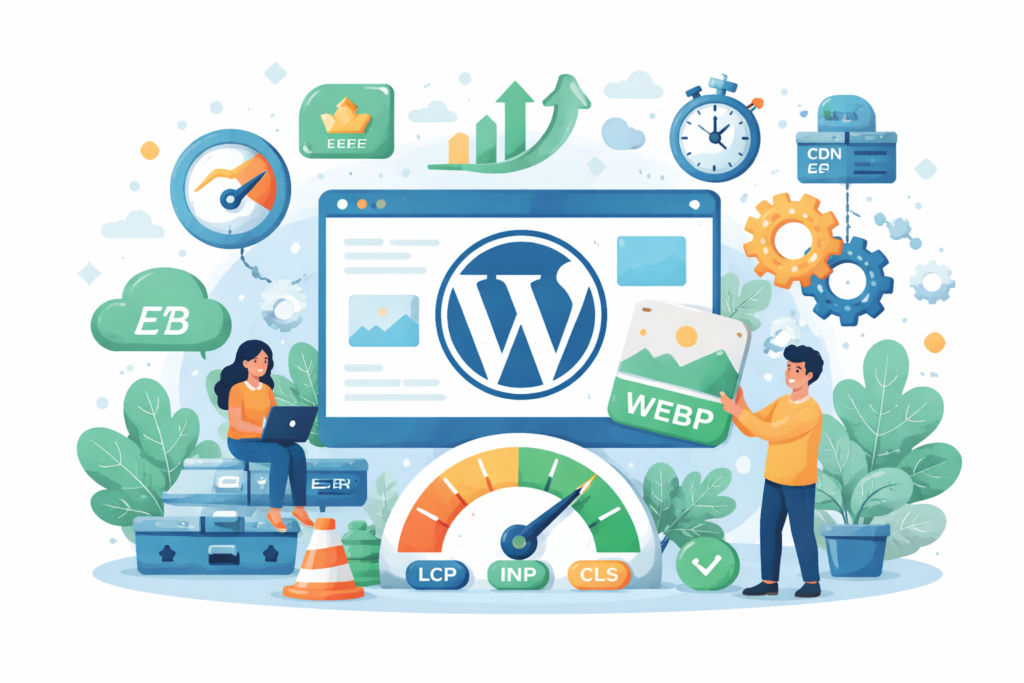
WebP has a direct and measurable impact on Core Web Vitals, which are critical indicators of real-world user experience. One of the most affected metrics is Largest Contentful Paint, which often depends on how quickly large images load above the fold.

By reducing image file sizes, WebP allows browsers to download and render key visuals faster. This shortens the time it takes for users to see meaningful content, improving perceived speed and actual performance metrics. Faster rendering also reduces the likelihood of users abandoning a page before it fully loads.

WebP indirectly improves interaction-related metrics as well. When images load efficiently, fewer resources compete for bandwidth, allowing scripts and interactive elements to become responsive sooner. This results in smoother navigation, quicker interactions, and a more stable browsing experience across devices.

WebP WordPress Compatibility and Browser Support

One of the most common concerns about WebP is browser compatibility. Today, this concern is largely outdated. Modern browsers across desktop and mobile platforms fully support WebP, making it safe for widespread use on WordPress websites.

That said, responsible implementation still requires fallback handling. A small percentage of users may access a site using older environments or uncommon devices. WordPress sites should be configured to serve alternative image formats when necessary to ensure no visitor experiences broken or missing images.

Compatibility also depends on hosting and server configuration. Some hosting environments support automatic WebP generation, while others rely on plugins or manual setup. Understanding how your WordPress stack handles images helps prevent conflicts, caching issues, or inconsistent delivery.

Native WordPress Support for WebP Images

Recent versions of WordPress include native support for uploading WebP images directly into the media library. This allows site owners to store and use WebP files without custom code or third-party tools.

However, native support alone is limited. WordPress does not automatically convert existing JPEG or PNG images into WebP, nor does it dynamically serve different formats based on browser support. As a result, many websites only benefit partially from WebP when relying solely on core functionality.

Another limitation involves image resizing. WordPress generates multiple image sizes for responsive layouts, but without additional optimization, these resized versions may remain in older formats. This creates inconsistent performance improvements across different screen sizes and devices, reducing the overall effectiveness of WebP.

WebP Conversion Methods for WordPress Websites

There are three main ways to implement WebP on a WordPress website: plugin-based conversion, server-side conversion, and CDN-based delivery. Each method offers unique benefits depending on technical expertise and site requirements.

Plugin-based conversion is the most accessible option. It automates image optimization, handles browser compatibility, and integrates directly with WordPress workflows. However, poorly optimized plugins can introduce overhead or conflicts if not carefully selected.

Server-side conversion provides greater control and efficiency. Images are converted using server tools, reducing reliance on WordPress plugins. This approach is ideal for performance-focused websites but requires technical knowledge and compatible hosting infrastructure.

CDN-based delivery shifts image optimization and format selection to an external delivery layer. This reduces server load and simplifies management while ensuring users receive the most efficient image format for their browser.

SEO Benefits of Using WebP in WordPress

WebP contributes to SEO by strengthening performance-related signals that search engines already value. Faster loading pages improve crawl efficiency, reduce bounce rates, and increase user engagement, all of which support better visibility over time.

Optimized images also enhance image search performance. Faster-loading visuals are more likely to engage users, especially on mobile devices, increasing the overall value of image-based traffic.

WebP aligns with modern search engine priorities that emphasize user experience, efficiency, and accessibility. While it does not replace high-quality content or sound technical SEO practices, it enhances the foundation on which those strategies rely, making them more effective and sustainable.

WebP and Mobile Optimization in WordPress

Mobile performance has become one of the most critical success factors for WordPress websites. With the majority of users accessing content on smartphones, image efficiency directly affects usability, engagement, and search performance. WebP plays a central role in mobile optimization by dramatically reducing image file sizes without sacrificing visual quality.

Mobile networks are often slower and less stable than desktop connections. When large images are delivered in outdated formats, pages take longer to render, causing users to abandon the site before content becomes visible. WebP minimizes this risk by ensuring images load quickly, even on limited bandwidth, creating a smoother and more reliable browsing experience.

From a design perspective, WebP supports responsive images effectively. WordPress can serve appropriately sized images for different screen resolutions while maintaining consistent quality. This balance between performance and aesthetics ensures mobile visitors receive a fast, visually appealing experience that encourages longer sessions and repeat visits.

WebP Image Delivery and User Experience Signals

WebP Image Delivery and User Experience Signals

User experience is a defining factor in how both visitors and search engines evaluate a website. WebP enhances user experience by reducing delays, preventing visual disruptions, and improving perceived speed across all pages.

When images load quickly, users are more likely to stay engaged with the content. Slow-loading visuals can cause frustration, increase bounce rates, and reduce trust. WebP helps eliminate these friction points by ensuring images appear promptly and smoothly, even on content-heavy pages.

Visual stability is another important consideration. Efficient image delivery reduces layout shifts caused by late-loading assets. This creates a more predictable and comfortable browsing experience, reinforcing professionalism and credibility. Over time, these positive interactions contribute to stronger behavioral signals that support long-term SEO performance.

Security and Reliability Considerations for WebP WordPress

While WebP is a safe and widely adopted format, its implementation must follow responsible security practices. Improper handling of image uploads, conversions, or server configurations can introduce unnecessary risks into a WordPress environment.

It is essential to ensure that only trusted tools and workflows are used for image processing. Poorly maintained plugins or misconfigured servers can expose vulnerabilities, consume excessive resources, or disrupt normal site functionality. Regular updates and controlled access to image processing features are critical for maintaining stability.

Reliability is equally important. Visitors expect images to load consistently across devices and browsers. A failed fallback or broken image undermines trust and damages the perceived quality of the website. Thorough testing and monitoring ensure WebP enhances performance without compromising reliability or security.

Common Mistakes When Implementing WebP in WordPress

One of the most common mistakes is converting images without preserving originals. This limits flexibility and makes it difficult to revert changes if issues arise. Original files should always be retained as backups for quality control and future use.

Another frequent error is failing to implement proper fallback support. Serving only WebP images without considering compatibility can result in missing visuals for some users. This negatively affects accessibility and user trust, especially for business-critical pages.

Over-compression is also a widespread problem. Aggressive compression settings can degrade image quality, making content appear unprofessional. The goal of WebP optimization is balance—smaller file sizes with no noticeable loss in visual clarity.

WebP for E-Commerce and Image-Heavy WordPress Sites

For e-commerce stores, portfolios, and media-rich blogs, image performance directly impacts revenue and engagement. Product images, galleries, and sliders must load quickly while maintaining high quality. WebP enables this balance more effectively than traditional formats.

Faster image delivery improves product browsing, reduces friction during navigation, and enhances user confidence. When customers can view products instantly and clearly, they are more likely to explore further and complete purchases.

Image-heavy websites also benefit from reduced server load and bandwidth usage. WebP lowers the overall resource footprint, improving scalability during high-traffic periods and maintaining consistent performance under load.

WebP and Long-Term SEO Sustainability

Search engine algorithms continue to evolve toward rewarding sites that provide efficient, user-focused experiences. WebP aligns with this direction by addressing performance at a foundational level rather than relying on short-term optimization tactics.

Unlike temporary SEO techniques, image optimization delivers lasting value. Faster pages improve crawl efficiency, reduce technical debt, and support other SEO efforts such as content expansion and internal linking.

WebP also future-proofs WordPress websites. As performance expectations rise and mobile usage grows, sites that already use modern image formats will be better positioned to adapt without major overhauls.

WebP Implementation Workflow for WordPress Websites
WebP Implementation Workflow for WordPress Websites

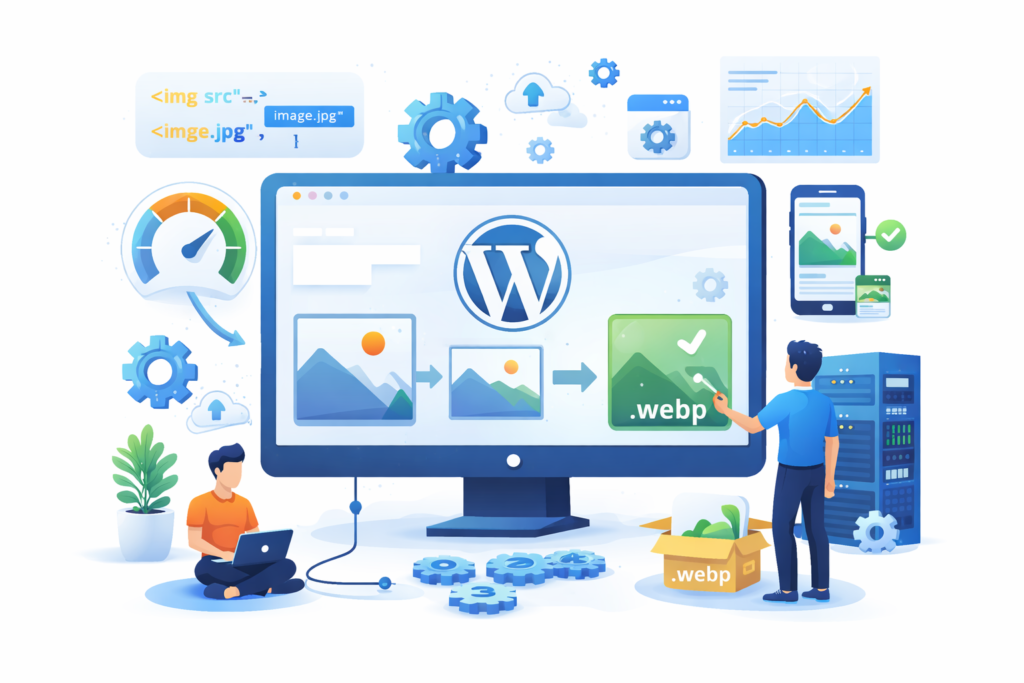
A successful WebP implementation begins with auditing existing images to understand current file sizes, formats, and performance impact. This helps identify where optimization will deliver the greatest benefit.

The next step is choosing an appropriate conversion and delivery method based on technical capabilities and site requirements. Whether using plugins, server tools, or external delivery systems, consistency and reliability should guide the decision.

After implementation, ongoing monitoring is essential. Performance metrics, visual quality, and compatibility should be reviewed regularly to ensure WebP continues to deliver positive results without unintended side effects.

FAQs

Q1.Is WebP safe to use on WordPress websites?
Yes, WebP is a stable and widely supported image format when implemented responsibly with proper fallbacks.

Q2.Does WebP affect image quality?
When configured correctly, WebP maintains excellent visual quality while significantly reducing file size.

Q3.Will WebP improve SEO rankings directly?
WebP improves performance and user experience, which indirectly supports stronger SEO outcomes.

Q4.Do I need to convert all existing images to WebP?
Converting high-impact images first is often the most effective approach, followed by gradual optimization.

Q5.Is WebP suitable for all types of websites?
WebP benefits most WordPress sites, especially those with frequent image usage or mobile traffic.

Q6.Can WebP replace JPEG and PNG entirely?
In most cases yes, but maintaining originals and fallbacks ensures flexibility and compatibility.

Best Practices Summary for WebP WordPress

WebP should be implemented as part of a broader performance strategy rather than a standalone fix. Retain original images, avoid over-compression, and test thoroughly across devices.

Choose tools that align with your technical skill level and site scale. Prioritize consistency, stability, and maintainability over quick wins.

Regularly review performance metrics and user experience indicators to ensure WebP continues delivering value as your WordPress site evolves.

Conclusion

WebP WordPress optimization is no longer a nice-to-have enhancement—it is a core component of modern website performance. By reducing image sizes, improving load times, and enhancing user experience, WebP strengthens both technical SEO and real-world usability.

When implemented thoughtfully, WebP supports long-term growth, scalability, and search visibility. At mywebmaintenance, we view image optimization not as a technical shortcut, but as a foundational investment in site quality, trust, and performance.

WordPress websites that adopt modern image standards today are better positioned to compete tomorrow.

Want to Implement This Easily?

You are an expert consultant.

Based on the blog post titled “WebP WordPress”, provide a step-by-step, practical implementation guide.

Include tools, best practices, common mistakes to avoid, and advanced tips.

Assume the reader wants to implement everything discussed in this article effectively.

Want our help implementing this?
Just reach out to us via our website contact form:
https://www.mywebmaintenance.com/contact-us/

WebP WordPress: How Modern Image Optimization Improves Speed, Core Web Vitals, and SEO Read More »

WordPress Website Maintenance Checklist: 22+ Must Do Task In 2023

Are you up to date with your WordPress maintenance?

If the answer is no, don’t worry. We’ve created this guide to simplify the WordPress maintenance checklist process with 20 easy-to-follow tasks.

There are three ways to maintain a WordPress website – with a plugin, by hiring a maintenance service, or manually.

We’ve simplified all three ways to ensure you can easily maintain your website without worrying about it.

What is WordPress maintenance?

How to Offer Your Clients an Excellent Website Maintenance Plan or Retainer

WordPress maintenance is a procedure that requires you to complete several tasks that will help you optimize your website, keep it secure, and keep it running like a well-oiled machine. The WordPress maintenance checklist includes tasks like deleting outdated plugins, fixing broken links, updating WordPress, and much more.

A checklist for maintaining a WordPress website

The Complete Website Maintenance Checklist - DreamHost

There are several ways you can maintain a WordPress website. Some require you to be much more hands-on than others, but each has its benefits. We’ve listed these methods in order of effectiveness and convenience so you can choose the best option according to your needs.

A. Use a maintenance plugin

Using a maintenance plugin like WP Remote is the best choice to ensure that your website is functioning correctly without handing over the reins to a stranger. A maintenance plugin allows you to monitor everything from security to backups and updates from a single dashboard.

WP Remote gives you complete control over the maintenance of your WordPress website by simplifying complex tasks in minutes that can take hours to complete manually. With WP Remote, you can manage multiple websites from a single dashboard, saving you time and effort that you can use to grow your business.

What you can expect with WP Remote:

  • Scheduled automatic backups
  • Secure updates via staging sites
  • Thorough on-demand malware scanning
  • Accurate malware detection
  • Flawless cleanups
  • Does not impact server performance
  • Automated scans
  • Real-time alerts
  • Uptime monitoring
  • Retrievable reports
  • Activity log

B. Hire a maintenance service

Maintenance services like Maintain or WP Buffs will take care of WordPress maintenance for you. They maintain your website and make sure thing is running smoothly.

However, not all maintenance services are dependable, and the good ones can be expensive. Moreover, we can’t guarantee the effectiveness of these services, as it varies from provider to provider. We suggest that you only hire maintenance services that you trust.

C. WordPress maintenance checklist: manually maintain your website in 20 easy steps

Website Maintenance Checklist 2022 [Tasks+Cost+Importance]

The third and final option to maintain your WordPress website is manual maintenance. Manual WordPress maintenance tasks can be tiresome, there are many aspects to keep track of, and they can quickly take up a large chunk of your work time if you don’t have a devoted person to take care of your website maintenance, especially for more significant sites.

However, if you want to maintain your WordPress site manually, we’ve put together a WordPress maintenance checklist for you to refer to keep on top of your site’s maintenance.

1. Prioritize the security of your WordPress website

The first and most crucial task in WordPress maintenance is to create a plan for your website security and execute it. The security of your WordPress website should be your top priority. The security of your WordPress website should be your top priority because even the slightest hint of malware can cause you to lose customers, blocklist your website, or even lose data. The consequences are far too significant to risk the security of your website. 

The best way to protect your WordPress website is to use a security plugin like MalCare. With MalCare, you can schedule daily scans of your website and get notified when it detects suspicious activity. Even if malware is detected, you’ll be able to clean it up within minutes, with a single click on MalCare. Doing this will always be in control of your website’s security.

MalCare also provides firewall protection that stops all incoming attacks, such as brute force attacks and XSS attacks, which can harm your website, visitors, and the entire business.

2. Secure your website regularly

If your website is essential to your business by any means, backups are an absolute necessity. But if your website gets hacked and all data is lost, or your web host suspends your account and deletes your website data, backups are the best solution if you don’t want to start from scratch. Often, website owners underestimate the need for backups because they seem unnecessary until they are needed.

With a good backup, you can get your website back and run in minutes, reduce downtime, and minimize losses.

There are several methods to create backups of your WordPress site, such as using a backup plugin, using your web host’s backups, or backing up your site manually. Although all these options are possible, the only reliable option is using a backup plugin like Blogvault.

Backing up your website can be tedious and prone to human error. The web host’s backups are not always reliable; if your web server gets hacked, your backups will also be affected. BlogVault automates this process by creating automatic daily backups for your website and storing them on an external server. This way, even if your website’s server is corrupted, your backups are safe, and the storage does not affect your website’s performance.

3. Optimize the performance of your WordPress website

One of the main reasons why visitors leave a website is because it loads too slowly. Thanks to the many tools and plugins available for WordPress websites, you can optimize your website to improve its performance. These include removing junk data, optimizing images, and more. You can use a website optimization plugin like Jetpack or WP Rocket to improve your website’s performance.

4. Update the WordPress version

Probably the most critical task in WordPress maintenance is updating your WordPress version. WordPress version upgrades are released regularly, about twice a month, and must be installed as soon as possible. They usually include patches, bug fixes, enhanced features, and other improvements. But they also close newly discovered security holes, which makes them an indispensable part of your maintenance routine.

WordPress automatically installs minor updates to your site, but you can disable this feature. Significant updates require your approval, but often management delays updating WordPress versions because significant changes can cause incompatibility issues with existing themes and plugins and potentially break the site.

You can utilize a plugin like BlogVault to create a test site and test any significant updates. You can merge this with your live site to ensure these updates are safe.

5. Update WordPress themes and plugins

Similar to your WordPress core, your website’s themes and plugins need to be updated regularly. Ideally, you must update them as soon as an update is released. Theme and plugin developers often fix discovered vulnerabilities by releasing patches in the form of updates. Therefore, you require to update your website regularly. However, it is not always possible to keep track of updated schedules.

If you use BlogVault, you can monitor the updates from your dashboard and update your themes and plugins instantly and effortlessly. Can also test necessary plugins or theme updates via staging sites.

6. Detect and delete spam

Spam is a real problem, especially for high-traction websites. If you permit comments on your site, you may have noticed that many of them are spam. Some are just random posts promoting something, but there are also those with links that can be harmful and trick your visitors into giving away their information.

Spam comments make it challenging for genuine visitors to get in touch with you, and the potential security risks posed to your website by malware. It would be best if you got rid of all this spam. The easiest method to do that is with an anti-spam plugin like Akismet.

7. Repair broken links

Broken links on your WordPress website may seem small, but if your links are broken, it can hinder Googlebot and other search engines from crawling and indexing your web pages. That means your website will not appear in search engines despite all the SEO measures and content you spend a lot of time on.

To avoid this, you need to check your website for broken links from time to time. You can use a website audit tool to crawl your website and check for any problems. That will give you a list of broken links that you can update.

8. Check downloads and social media links

If you offer downloads on your website or provide links to social media, you need to check if these links are regularly working. Sometimes, the links and downloads are broken due to errors or inefficient code. It can significantly affect the user experience of your visitors and make them doubt the credibility of your business.

Visit your website in an incognito window and ensure all links lead to the correct web page and that all downloads are available without any problems.

9. Check the SEO of your website

The search engine optimization of your website is an essential factor in how your potential customers find your website. Therefore, it is crucial to optimize it for search engines. That is not just about optimizing new content and forgetting about it. You must also review your old content and pay attention to meta descriptions, tags, and titles. Review all your SEO practices quarterly to ensure your process is in line with new Google updates.

10. Check device and browser compatibility

We’ve already discussed why website performance is essential. An ordinary visitor is only willing to wait 3 seconds for your website to load and impress them. However, your website may work great on a desktop browser, not a mobile device. Similarly, websites can perform differently on different browsers.

Therefore, it is essential to regularly test your website’s performance on different devices and browsers to ensure that the user experience on your website is consistent for all visitors. With plugins like LambdaTest, you can quickly check your website’s device and browser compatibility.

11. Check user accounts

The user accounts on your WordPress website are just as vulnerable as the administrator account. Hackers can access your website through any user account by simply elevating the permissions and gaining access to your website. Therefore, a big part of maintaining your WordPress site is keeping an eye on all user accounts and ensuring they are secure. You can do this by following the actions below:

  • Enforcing a strict password policy for all accounts.
  • Applying the principle of most negligible benefit when assigning user roles
  • Regularly deleting old and inactive user accounts
  • Enforce frequent password updates

12. Examine UX as a whole

We’ve already discussed the need for a robust user experience, but you must look at it holistically. What does a customer see when he visits your website for the first time? Where do you want them to go when they visit a particular page? What do you want them to think about your brand? Once you answer these queries, your website’s UX will be much more polished.

Make sure the navigation on your website works smoothly. There are no broken links, forms, or opt-ins, and visitors can easily find what they’re looking for. It will assist you in increasing conversion rates and improve your brand image tremendously.

13. Check website passwords

Website passwords are the second most common reason for WordPress security breaches. Weak or overused passwords are common, and hackers often exploit this. Brute force attacks aim to guess password combinations using bots to gain access to your website. To maintain a secure website, you need to follow some password practices:

  • Use upper and lowercase letters, numbers, symbols, and punctuation marks in your passwords.
  • Use long passwords
  • Utilize a password manager to develop and store passwords.
  • Update your password frequently
  • Do not repeat passwords for different accounts.

14. Update website information

As your business grows, some changes matter to your customers. These changes are officially recorded, but your visitors only learn about them through your website. Updating information on your website, such as the “About Us” page, contact information, and significant changes in products and services is essential to keep in touch with your customers.

15. Delete inactive themes and plugins

Many people download additional themes or plugins they use once or twice and then forget about these extensions on their WordPress website. Inactive themes and plugins may seem harmless, but since you’re not using these extensions, likely, you’re not updating them either. So if there are any security vulnerabilities, won’t patch them. Hackers often exploit vulnerabilities in inactive themes and plugins to access your website.

The best method to eliminate these vulnerabilities is to delete all extensions you don’t use.

16. Review Google Analytics and Google Search Console

Your website data is a treasure trove of insights, and reviewing it can help you take better care of your website. Especially with security in mind, you need to regularly review your website statistics in Google Analytics and Google Search Console.

Based on your Google Analytics account, you can see if there is a sharp increase in the number of visitors to your accounts, and if they are coming from a particular region for no factor, this could be a sign of an attack. Also, you can use your Analytics data to see what type of content your visitors are engaging with, thus improving your offering.

Google Search Console also offers similar insights. Most notably, the Security Issues tab in Search Console alerts you when Google has detected malware on your site, allowing you to take care of it before your site is delisted. You can also check the keywords your audience is interested in and use them to make your content more relatable and discoverable.

17. Delete database junk

Your WordPress database is where all your web content is stored. Each post, image, and comment on your website is saved in the database. Over time, this content can buildup up the tables and slow down your website. Therefore, it is essential to delete the database junk periodically. You can do this manually, however, if your website has a lot of content, it will be difficult to manually determine which content is necessary and which needs to be deleted.

You can simplify this process using a plugin like WP Optimizer, which automatically optimizes your database tables and regularly deletes trash to improve your website’s performance.

18. Check your web host’s statistics, plans, and domains

Your web host has all the server information about your WordPress website. It is recommended to check this information regularly to ensure no problems. You should first check whether your server load has been regular. A surge in server load without a sustained increase in traffic could signify a brute-force attack. Besides, this will tell you if your web hosting plan is suitable for your website.

The administrator often loses track of the renewals and blocks his website. It is best to pay for long-term usage upfront and review your hosting plan and domains annually. Also, inspect if your hosting plan and domains are paid.

19. Clean up temporary media files

Media files enhance the user experience. Whether an image on a landing page, a video, or audio, media files take up a lot of space and affect website performance. But you can’t just do away with them. The best method to deal with media files is to optimize them before uploading and delete any temporary media files you no longer need. Plugins like WP media cleaner can be beneficial in cleaning up large websites.

20. Run through your website with check-up plugins

Check-up plugins put your website through a series of checks to let you know how your website is doing. It’s just like going for a medical check-up once a year. Most people shy away from it, but it’s best to be aware of any issues. Utilize a check-up plugin like Health Check & Troubleshooting.

Get a quick report on your site’s security, performance, and overall health. However, using a maintenance plugin like WP Remote will constantly monitor your site by default.

Why is WordPress maintenance necessary?

Like any system, your WordPress website has advantages from regular maintenance. In day-to-day operations, WordPress websites suffer from issues like malware, bloated data, unused plugins and themes, spam, and broken links. Therefore, you should perform regular WordPress maintenance tasks and fix all these minor issues before they grow into a series of consequences, such as

  • Hacked website
  • Data loss
  • Loss of income
  • Legal problems
  • Loss of visitors
  • Declining SEO

How often you must perform WordPress maintenance tasks

Different WordPress maintenance tasks need to be performed at different intervals. Some tasks like scanning your site or creating backups need to be done daily, while you can do tasks like checking your hosting plans and domains annually.

Final considerations

WordPress maintenance is an often overlooked aspect of running a website. However, if you want your website to be an asset that brings you customers and revenue, you need to ensure it is functioning optimally. Although it may seem tedious at times, you can easily do WordPress maintenance tasks and checklists with the help of plugins, which will help you free yourself from tedious tasks and focus on growing your business.

At My Web Maintenance, We’re passionate about WordPress website design, hosting, and maintenance. We offer website design, web hosting, and maintenance solutions for your business to help grow your online presence.

Grab Your Free Professional Website Security and Performance Optimisation Audit for Your Website Now!

WordPress Website Maintenance Checklist: 22+ Must Do Task In 2023 Read More »